Past Performance: Adding Projects, Experience, and Performance Data

Purpose: This guide covers the end-to-end process of preparing tagged PDF evidence, creating project assets in My Company, managing project attribution (Primes, JVs, and Subcontractors), mapping tags to proposal scorecards, and managing asset lifecycles.


Table of Contents

1. Tag Your PDF Supporting Documents (Pre-Upload Preparation)

2. Set Your Solicitation Preference Filter (Best Practice)

3. Complete the Project Creation Wizard (4-Tab Loop)

4. Map Tags to Your Proposal Submission

5. Asset Maintenance (Archiving vs. Deletion)


Before You Start

Understand these four core principles of Symphony Asset Management:

  • Reusable Master Assets: Projects stored in My Company → Projects / Past Performance serve as reusable master templates. You build a project entry once and can reference it across multiple solicitations (e.g., OASIS+, Alliant 3).
      
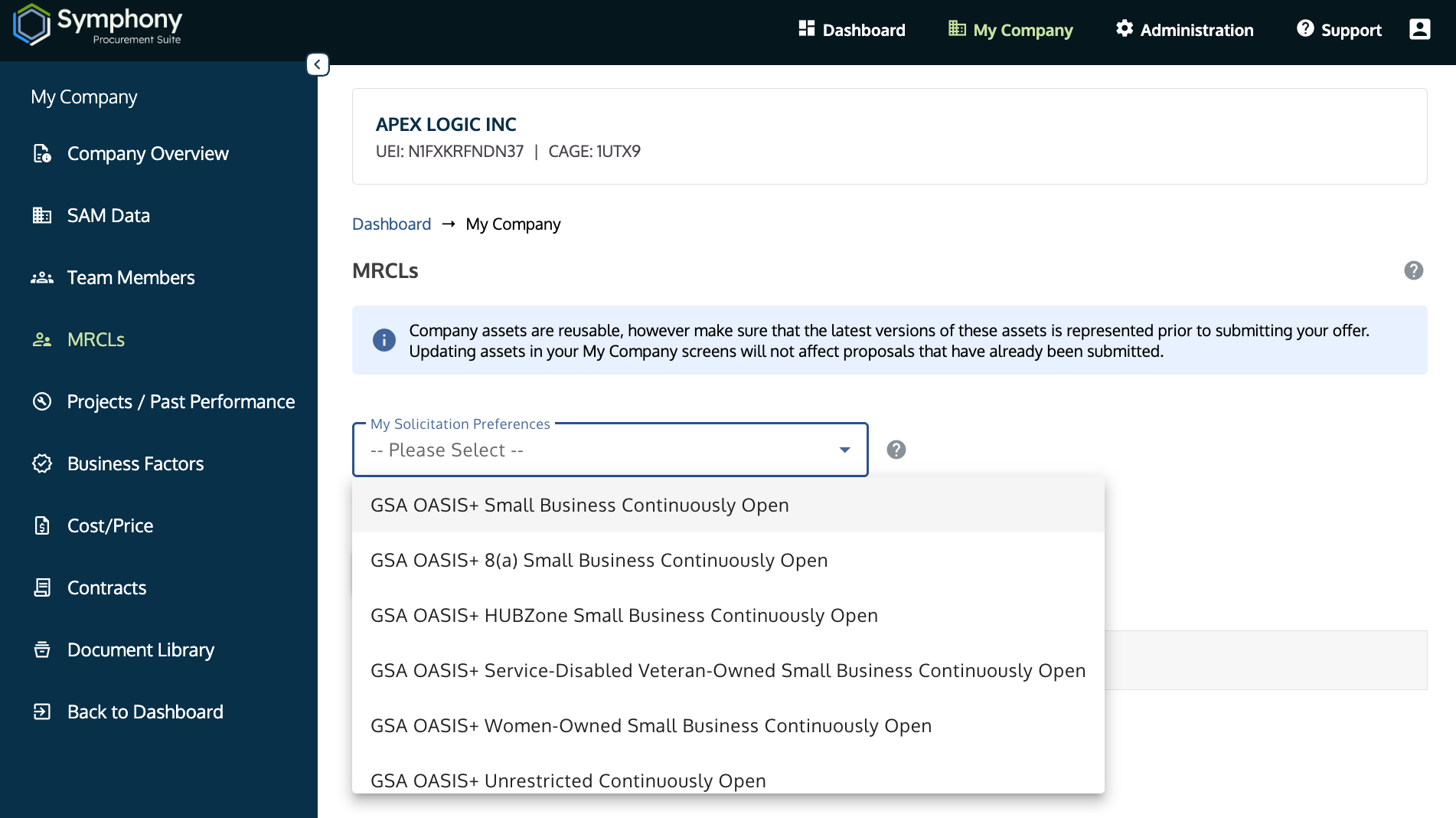
  • Solicitation Preference Filter: Setting your Solicitation Preference first is a recommended best practice so Symphony displays the right data schema required for your target bid (e.g., OASIS+ uses Numeric Past Performance Ratings, whereas Alliant 3 uses Adjectival ratings). Note that default dropdown selections may vary depending on active solicitation cycles, and you can change this filter at any time.
      
  • Generic Tag Legend: Symphony provides a standardized Tag Legend for core project evidence (e.g., Period of Performance, Total Contract Value). The tag legend is generic across core project data fields only.
      
  • Manual Tag Mapping Required: Uploading a tagged PDF to your project library does not automatically award points. You must manually map each tag to its corresponding claim inside your active Submission Workspace.
      
  • Proposal Snapshot Security: When you formally submit a proposal, Symphony captures an immutable "snapshot" of all project data and attached files as they existed at submission time. Deleting or editing a project in My Company after submission will NOT alter or corrupt your previously submitted offer snapshot.


Steps

1. Tag Your PDF Supporting Documents (Pre-Upload Preparation)

To avoid double work, prepare and tag your PDF supporting evidence in a PDF editor before creating the project record in Symphony.


  1. Open Your Document: Open your project evidence file (e.g., FPDS report, CPARS, Contract Award, or Subcontract Agreement) in a PDF tool like Adobe Acrobat.
      
  2. Add Sticky Notes / Comments: Locate the exact text proving your claim (e.g., dollar value, start/end dates, NAICS code) and add a Comment or Sticky Note directly over that text.

  3. Use Standardized Tag Keywords: Use standard tag abbreviations in your comments.
      
  4. Save File: Save the tagged PDF to your computer, ready for upload.


NOTE: Do NOT use Adobe PDF Portfolios: PDF Portfolios wrapper formats are unreadable by automated extraction tools. Always use standard Combine Files or Insert Pages features in Adobe (or equivalent software) to generate a single, standard multi-page PDF.


Tag Legend and Configuration

Recommended Tag

DescriptionSolicitation
COSTSOther Direct or Indirect Costs
Evolve
CRCost Reimbursement Contract Type
All
FOREIGNForeign Country/Location(s)
Alliant 3
FTE
Full-Time Equivalents / Labor Hours
OASIS+
LOCATIONS
Number of Performance Locations
All
NAICS
North American Industry Classification Code
OASIS+
OCONUS
Outside of the Continental United States Work
All
POPPeriod of Performance (Start and End Dates)All
PSCProduct and Service Code OASIS+
TCVTotal Contract Value / Obligated AmountAll
TEAMINGSubcontractor / Teaming Partner ParticipationAll


2. Set Your Solicitation Preference Filter (Best Practice)

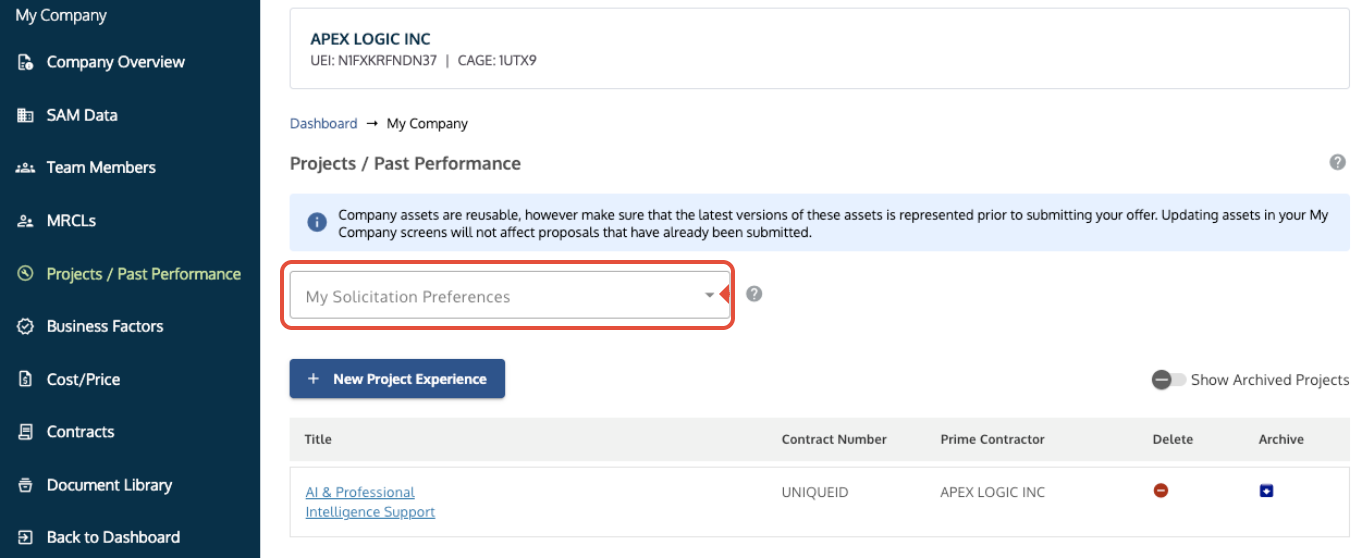
Before adding or editing data, select your target solicitation from the filter dropdown. This ensures Symphony loads the correct rating structures and field requirements.


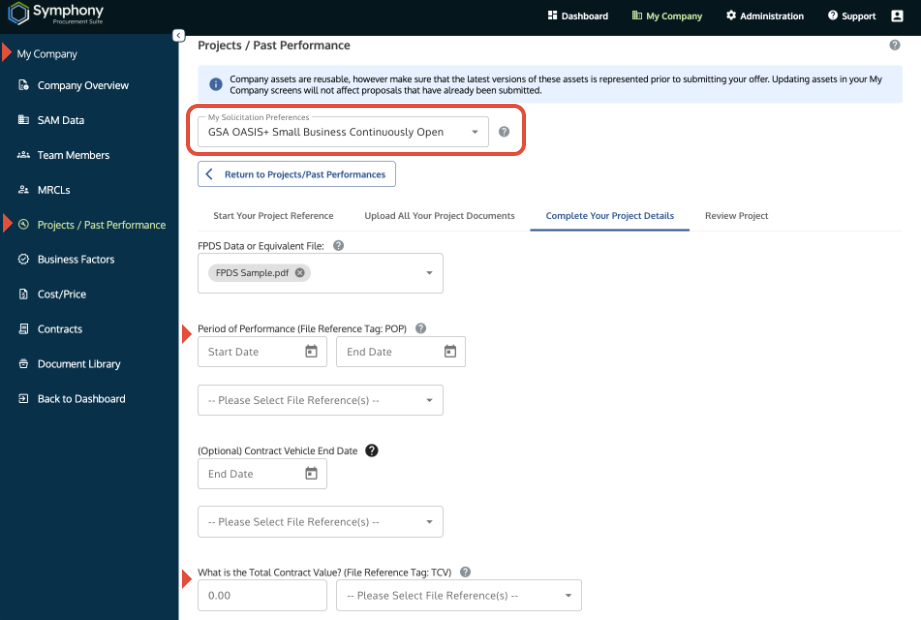
  1. Go to My Company → Projects / Past Performance.
      
  2. Locate the My Solicitation Preferences dropdown.
      
  3. Select your target solicitation (e.g., GSA OASIS+ Small Business Continuously Open).


Solicitation Preferences determine the options available for a solicitation.

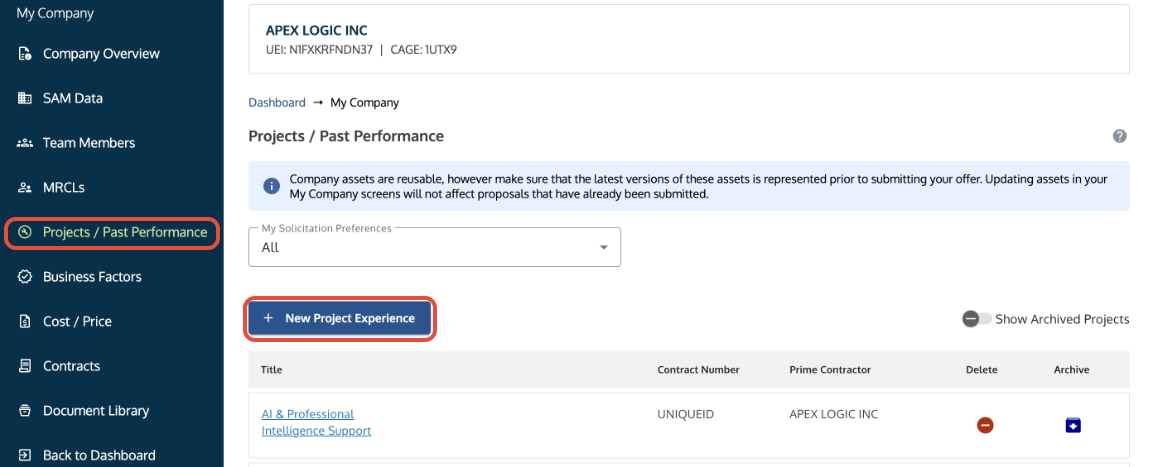
Projects/Past Performance tab in My Company showing the My Solicitation Preferences dropdown, +New Project Experience button, Show Archived Projects toggle, and the project list with Delete (red icon) and Archive (blue icon) controls.


Where Did My Projects Go?

Projects do not disappear when changing solicitation preferences. If a project seems missing, it was likely archived. Click the Show Archived Projects toggle on the right side of the screen to view or restore archived records.


3. Complete the Project Creation Wizard (4-Tab Loop)

Click + New Project Experience (or click a Project Title to edit) to open the dynamic 4-tab project wizard:


Projects/Past Performance tab showing the +New Project Experience button highlighted.

Projects/Past Performance tab showing the +New Project Experience button highlighted. 


Tab 1: Start Your Project Reference

  1. Project Title: Enter a clear, descriptive title (maximum 250 characters).
      
  2. Select Contract Type: Select the contract structure that matches your award (e.g., Stand-Alone Contract, Task Order under IDIQ, First-Tier Subcontract). Select State/International/Non US Fed Govt/Commercial Projects for non-federal contracts.
      
  3. Contract / Task Order Numbers: Enter the official Contract Number and Task Order Number (if applicable).
      
  1. Customer / Department Name: Select the ordering Department Name and Agency Name from the picklists.
    • Missing Federal Agencies: If a federal agency is not listed in the picklist, log in to SAM.gov, search for your contract's contracting office/agency in the official hierarchy, and find the exact Department/Agency ID. If the agency is still unavailable in Symphony, contact the Symphony Support Desk to request that the agency ID be added to the database. As an immediate workaround, select State/International/Non US Fed Govt/Commercial Projects under Contract Type.
        
  1. Project Attribution ("Who is the Prime Contractor for this project?"): Select the specific entity that held the prime contract or executed the work:
    • Prime Contractor Experience: Select your own company name if your company was the direct prime contractor.
        
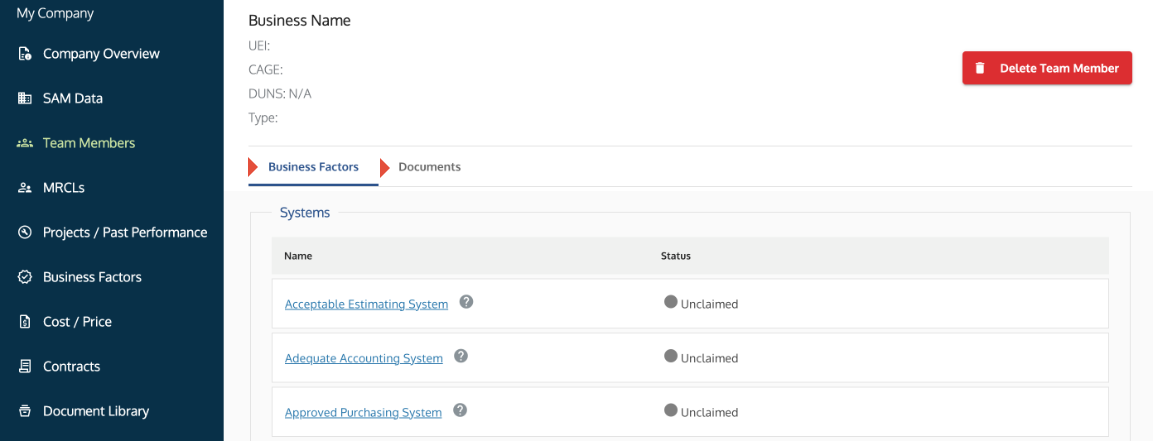
    • Active Bidding Partner / Subcontractor Experience: If the project was performed by an active teaming partner on your current bidding team, select their company name from the dropdown. (The partner must first be added under My Company → Team Members or MRCLs to populate in this dropdown).
        
    • Historical Subcontractor Projects (Not on Active Bidding Team): If a company was simply a subcontractor on a past project you are submitting for past performance credit (and they are not part of your active proposal team), do not select them as a Team Member. Select your company as the prime, and reference their participation under the "Were Subcontractors/Teaming partners involved with this project?" question in Tab 3.
        
    • Projects Performed as a Joint Venture (JV):
      • Previous JV Projects: If the project was performed by a previous Joint Venture composed of the same members as your current JV (per RFP guidelines), check the box for "The Prime Contractor for this project is a previous JV..." and upload a copy of the former JV agreement.
          
      • OASIS+ Mentor-Protégé JV Attribution Rules: For offers submitted by an SBA Mentor-Protégé Joint Venture, at least one Relevant Qualifying Project must be attributed to the Protégé firm or the offering MP-JV entity itself. Assign the project to the specific partner who executed the contract in the "Who performed this work?" dropdown.


Tab 2: Upload All Your Project Documents

  1. Open the Upload All Your Project Documents tab.
      
  2. Drag and drop your pre-tagged PDF files (FPDS, CPARS, Award Mods, SOWs, Subcontract Agreements) into the upload drop zone. See Document Upload & Submission Security: File Types, Limits, and Verification.


Tab 3: Complete Your Project Details

  1. Open the Complete Your Project Details tab.
      
  2. Select the uploaded source document for each performance metric.
      
  3. Enter performance values:
    • Period of Performance (POP): Enter Start Date and End Date.
    • Total Contract Value (TCV): Enter total dollar amount (Symphony will calculate the average annual value for OASIS+).
    • NAICS & PSC Codes: Select claimed industry and service codes.
    • Specialized Factors & Teaming: Answer applicable boolean/number fields (e.g., Cost Reimbursement, FTEs, OCONUS, Were Subcontractors/Teaming partners involved?).
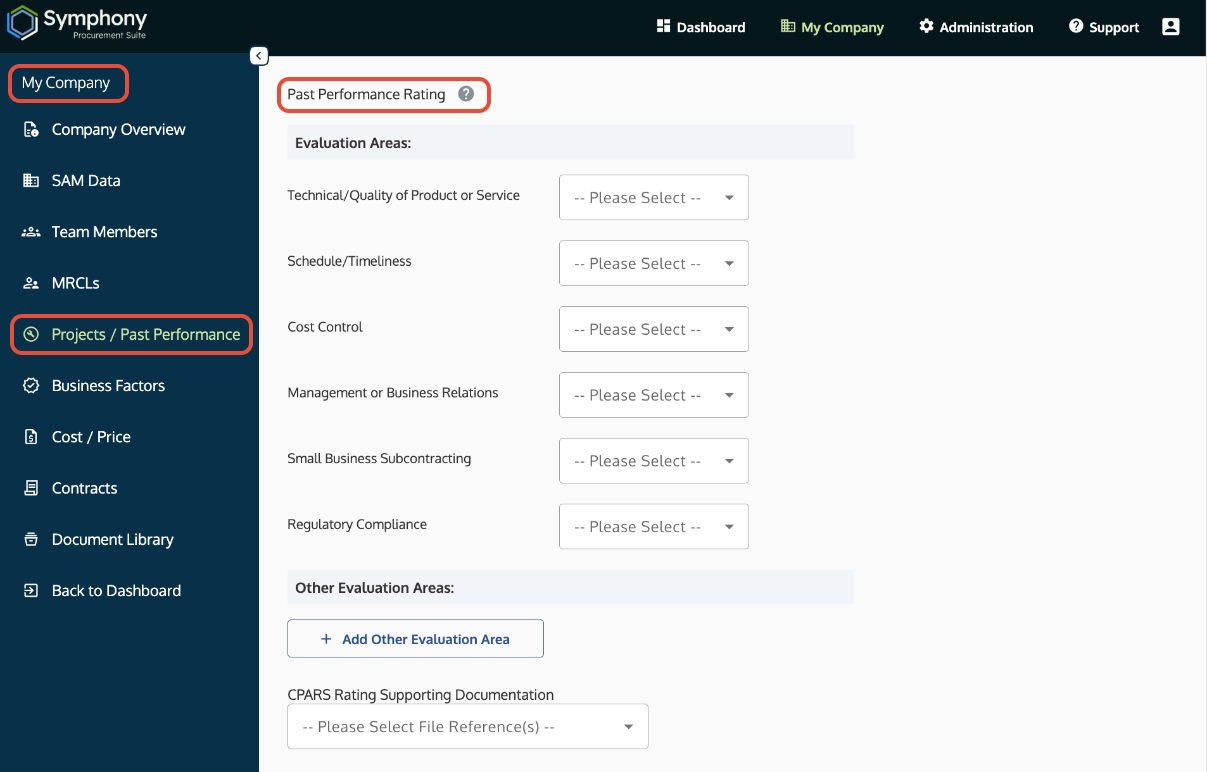
    • Past Performance Rating: Enter Numeric values (0.00–5.00) for OASIS+ or Adjectival ratings for Alliant 3 (determined by the Solicitation Preference above the project wizard).

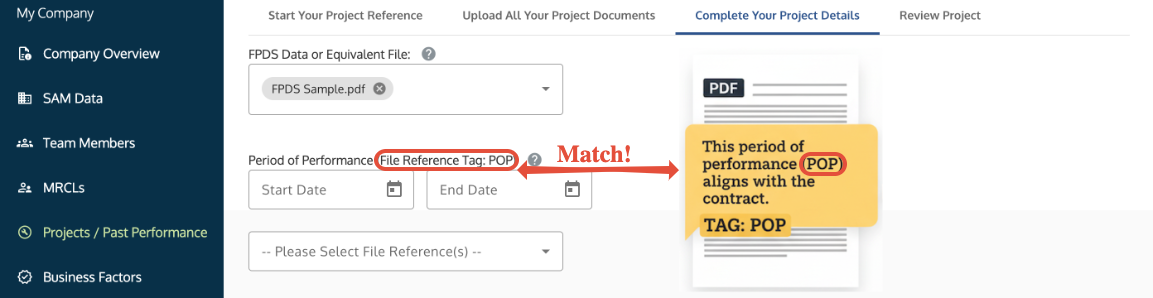
How to match the 'POP' tag in a PDF comment with the Period of Performance field in Symphony.

How to match the 'POP' tag in a PDF comment with the Period of Performance field in Symphony.


Tab 4: Review Project

  1. Open the Review Project tab to verify all captured reference data and linked documents.
      
  2. Click Save and Complete to save the project to your reusable library.


4. Map Tags to Your Proposal Submission

Mapping is the final handshake that connects your library asset to your proposal scorecard to claim points.

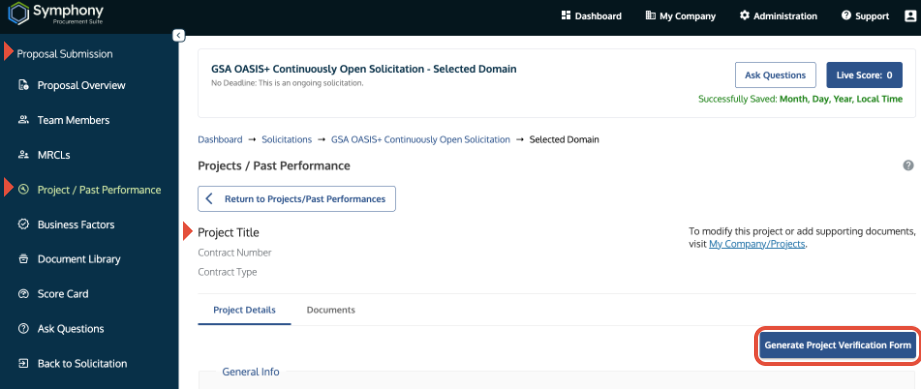
  1. Go to the Dashboard, enter your active Submission Workspace (Solicitation and Pool / Domain), and open the Projects / Past Performance section.
      
  2. Click Begin or Modify next to the project title (once added to the submission).
        
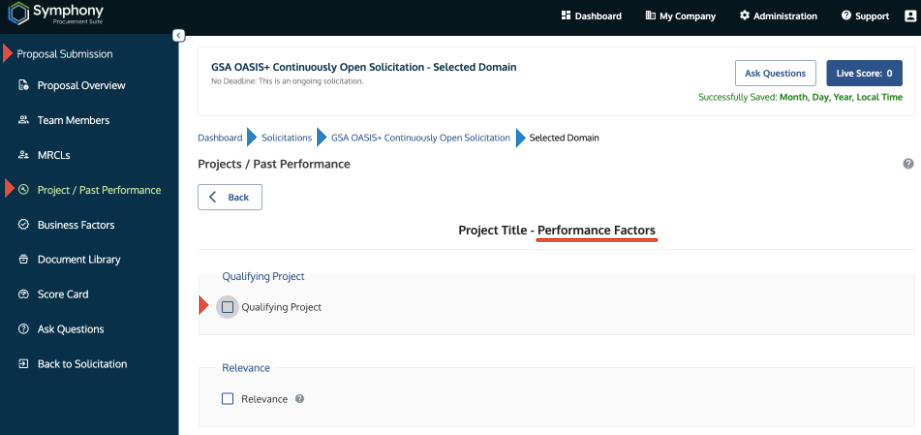
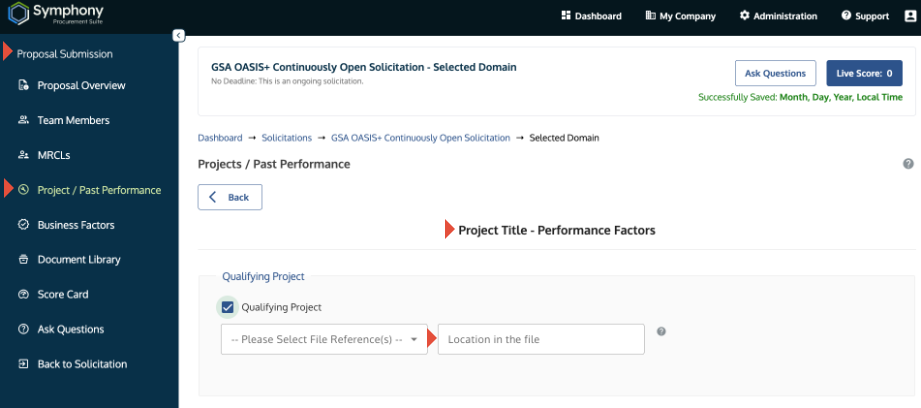
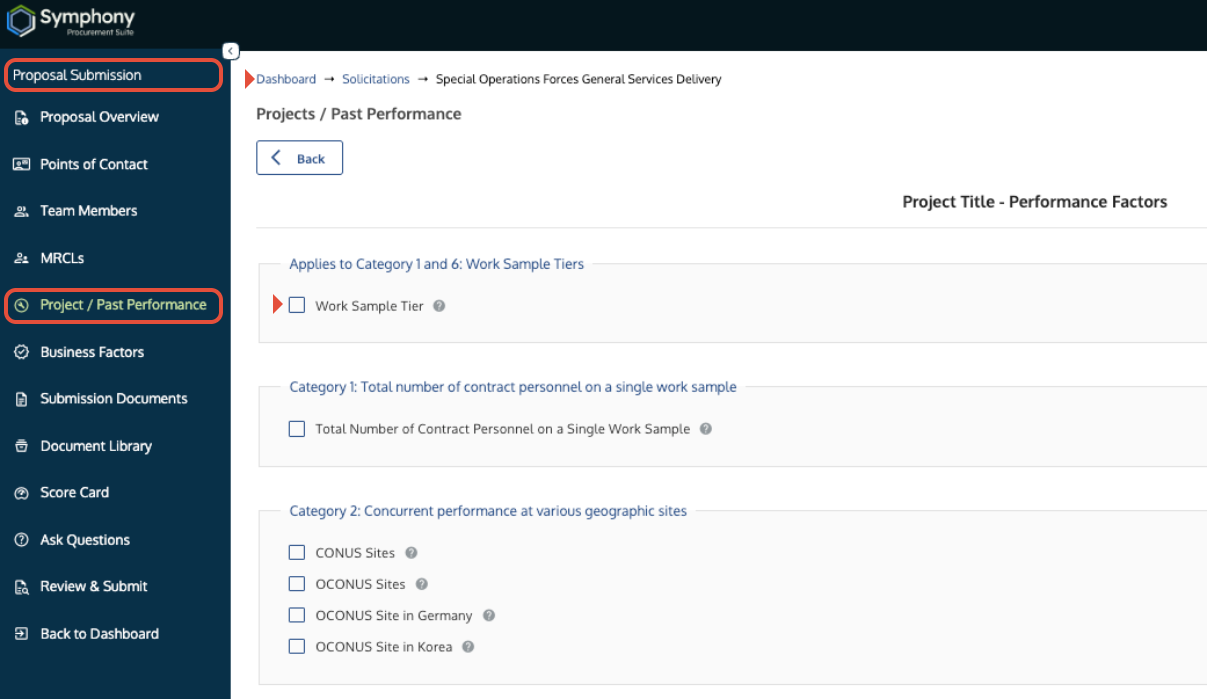
  3. Assign the project to a specific scoring factor (e.g., Qualifying Project).
      
  4. Location in File: In the Location in File field, type the exact tag keyword used in your PDF sticky note (e.g., POP or TCV). This provides evaluators with direct reference points in your uploaded documents.

5. Asset Maintenance (Archiving vs. Deletion)

Understanding asset lifecycles ensures clean workspace organization without altering historical records.


Asset Status Matrix

Action in "My Company"
Impact on DRAFT Proposals
Impact on SUBMITTED Proposals
Edit Data or Text
​Updates draft in real time.
​No impact (submitted snapshot is locked).
​
Delete / Replace PDF
​Updates draft with the new file.
​No impact (submitted PDF is locked).
​
Archive Project
​Hides project from active library view.
​No impact (submitted snapshot is safe).
​
Delete Project
​Must withdraw project from draft first.
​Safe to delete in My Company (submitted snapshot remains intact in portal history).
​


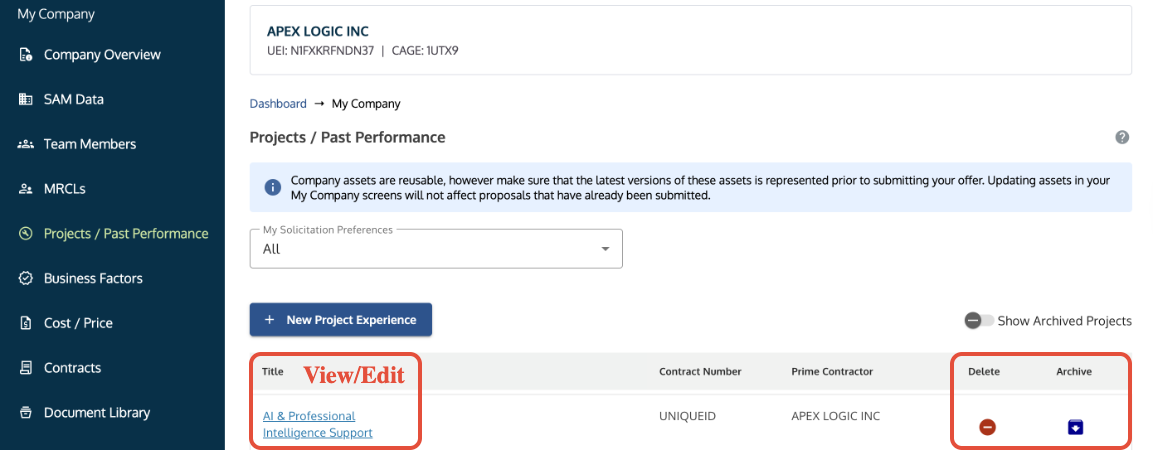
Projects/Past Performance table showing the option to view, edit, or delete a project.

Projects/Past Performance table showing the option to view, edit, delete or archive a project.


How to Archive a Project

Use Archive to clean up your active list without deleting records.

  1. Go to My Company → Projects / Past Performance.
      
  2. Locate the project row and click the Archive icon (blue box with a plus/down symbol) in the Archive column.
      
  3. To view or restore archived projects, toggle the Show Archived Projects switch.


How to Delete a Project

  1. Withdraw from Active Drafts: If the project is assigned to an unsubmitted proposal draft, enter the submission workspace on the Dashboard and click Withdraw.
      
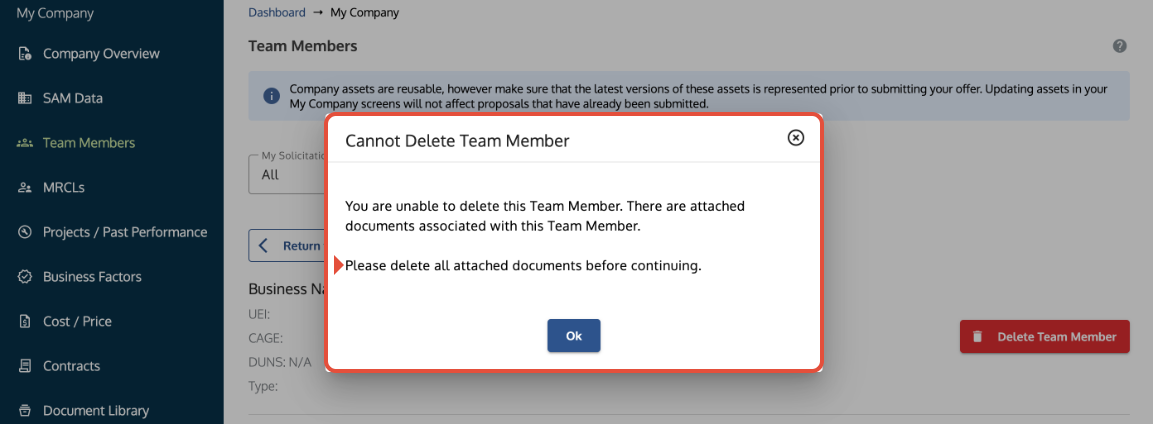
  2. Delete from Asset Library: Return to My Company → Projects / Past Performance and click the Red Minus / Delete icon. (Note: If the project was part of a previously submitted proposal, deleting it from My Company removes it from your reusable library for future bids, but will NOT delete or alter the submitted government snapshot).


Troubleshooting

Issue
Fix
My projects disappeared from the list!​Toggle Show Archived Projects above the project table to view or restore archived records.
​
Can I reuse the same project asset across different contract vehicles?
Yes! Projects are reusable master assets that can be linked across multiple solicitations.

Note: If you want to create separate, distinct duplicate entries for the same physical contract (e.g., to tailor different project entries for different bids), you must give each entry a slightly different Project Title (e.g., adding "- OASIS+") and contract/reference variation unless the original asset is archived.

​
I cannot find my Federal Customer / Agency Name in the dropdown.Search SAM.gov to verify the official Department/Agency ID. If still missing, contact the Help Desk so support can add the agency ID to the database. As an immediate workaround, select State/International/Non US Fed Govt/Commercial Projects under Contract Type.
​
I updated a project in My Company, but my submitted proposal didn't change.
Expected system behavior. Edits made in My Company do not alter submitted offers. If a revision window is open, you must retract your offer, update the project inside the submission workspace, and re-submit.
​​
The Project Title is too long to save.
​Shorten the project title text to under 250 characters and click save.
​
​Will deleting a project in My Company destroy my past submission?​No. Submitted proposals are frozen snapshots. Deleting a project in My Company removes it from your reusable library for future bids, but leaves past government submissions completely intact.
​


Was this article helpful?

That’s Great!

Thank you for your feedback

Sorry! We couldn't be helpful

Thank you for your feedback

Let us know how can we improve this article!

Select at least one of the reasons

Feedback sent

We appreciate your effort and will try to fix the article