Register Your Symphony Business Account
Purpose: This guide shows you how to correctly register for a Symphony account, ensuring you provide the mandatory SAM data and complete the necessary steps to set up your security credentials.
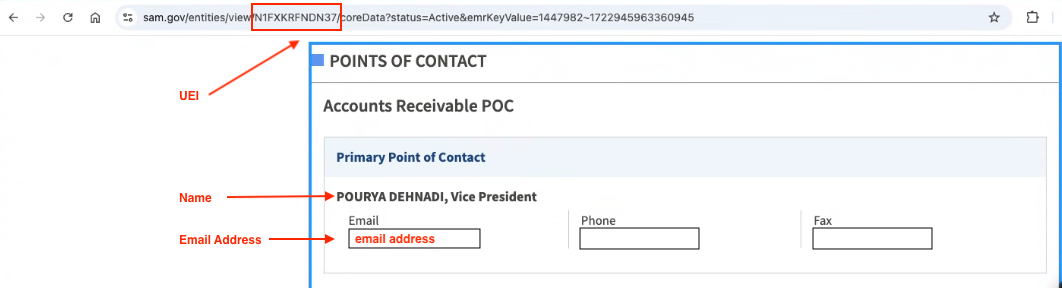
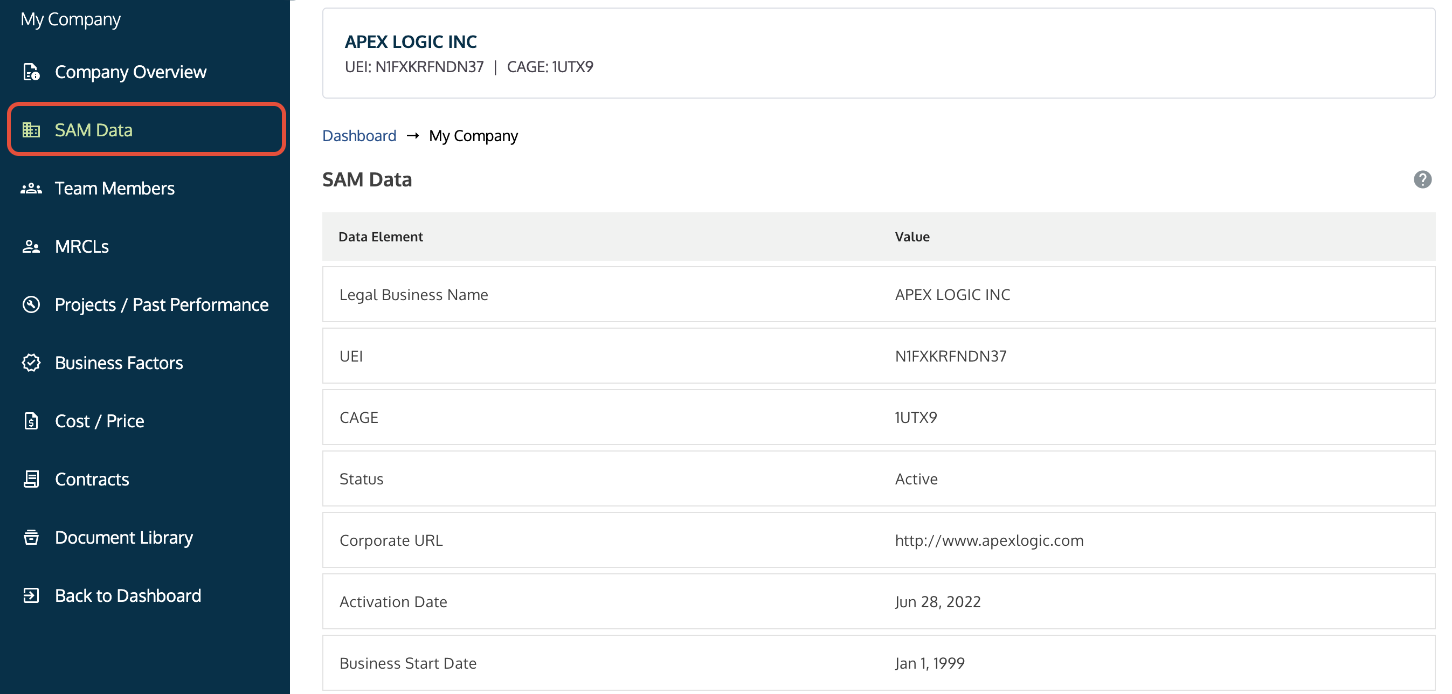
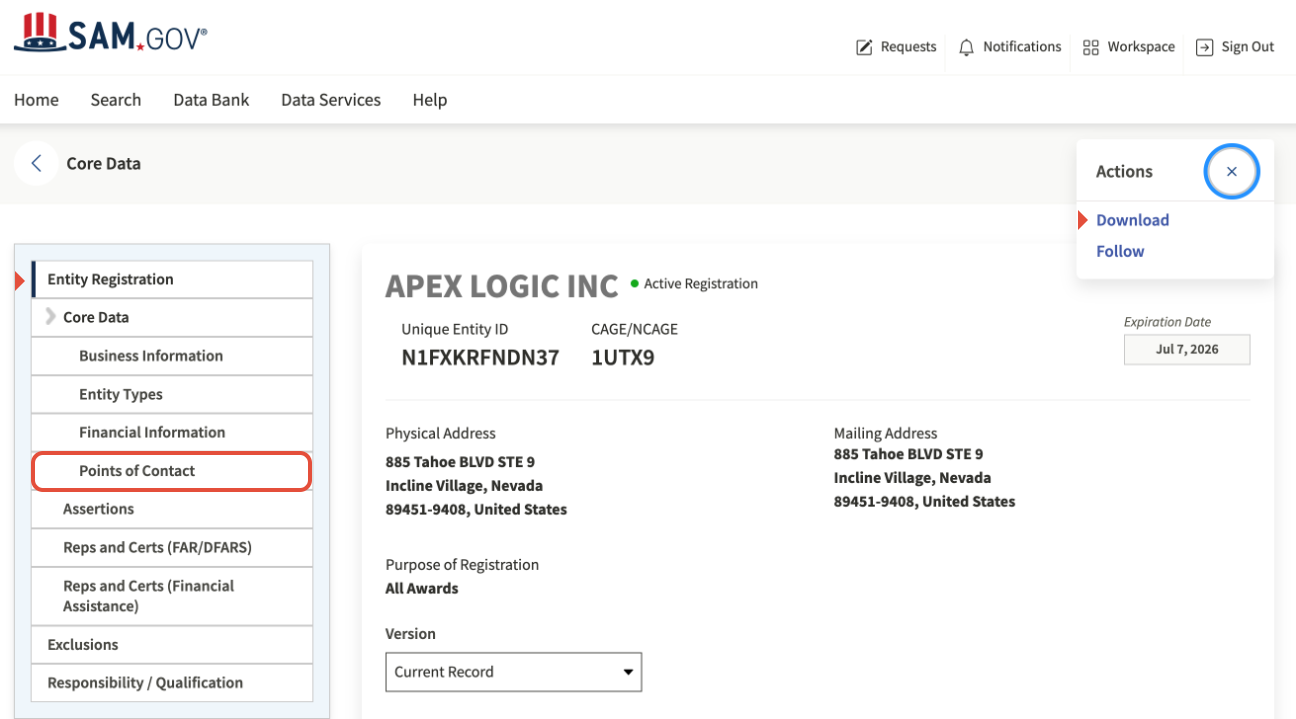
Administrators: You must provide documentation of your SAM.gov Points of Contact (showing your UEI, Name, and Email) to the Help Desk to activate your account.
Table of Contents
1. Start Your Registration and Validate Email
2. Verify and Confirm Company Data
3. Set Up Your Account and MFA
4. Request Account Activation from Administrator
Before You Start
Make sure you have the following ready before you begin:
- An individual email address (group/distribution emails are not supported).
- An active SAM.gov record for your company.
- The UEI (Unique Entity Identifier) and CAGE (Commercial and Government Entity) code for the company that will be the Prime Contractor.
| ⚠️ One Account per Company Your Symphony account is hard-linked to the UEI you enter during registration.
|
Warning: You must register with the UEI for the company that is the Prime Offeror or Contract Holder. Do not use subcontractor or Joint Venture member data.Steps
1. Start Your Registration and Validate Email
Go to the correct Symphony website for your contract vehicle to begin the process.
- See Access Symphony-supported Contract Vehicles to verify the portal address. All portals (except Polaris) display the contract vehicle logo.
- Accept the FOUO Notice: You must click Accept on the mandatory security and privacy warning message displayed on the welcome screen to proceed to the Sign In page. FOUO stands for For Official Use Only, which requires protection from public release.
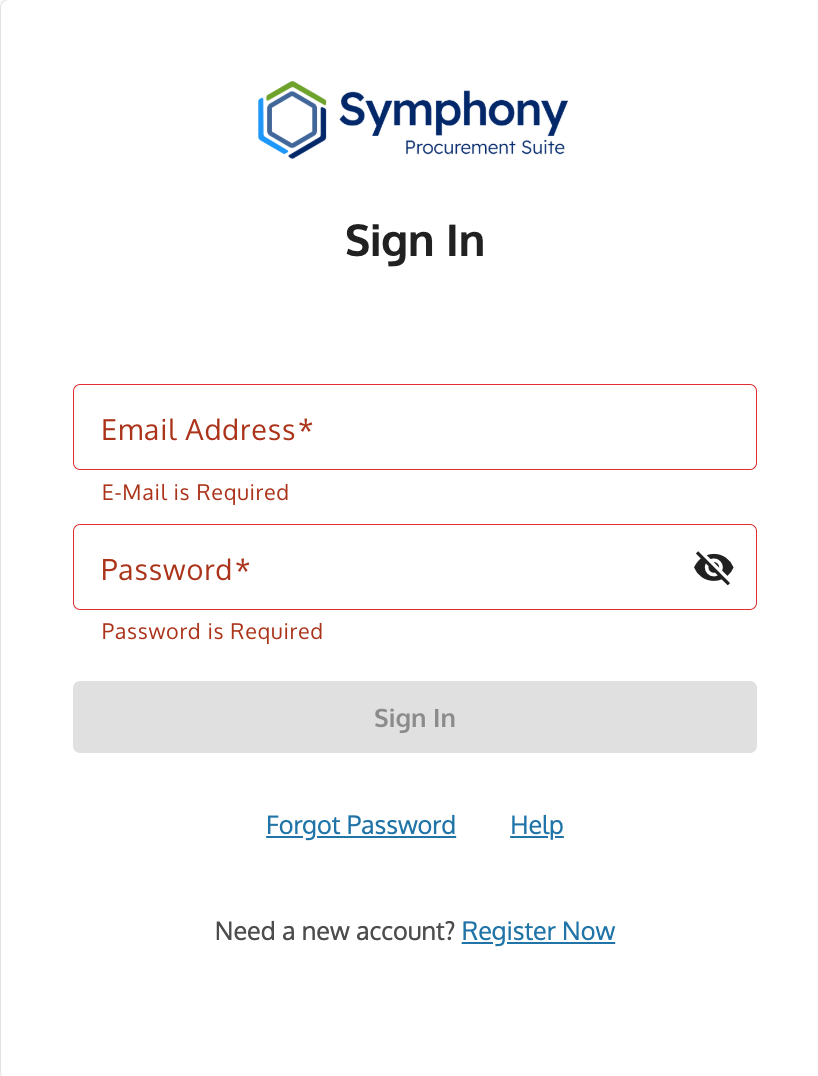
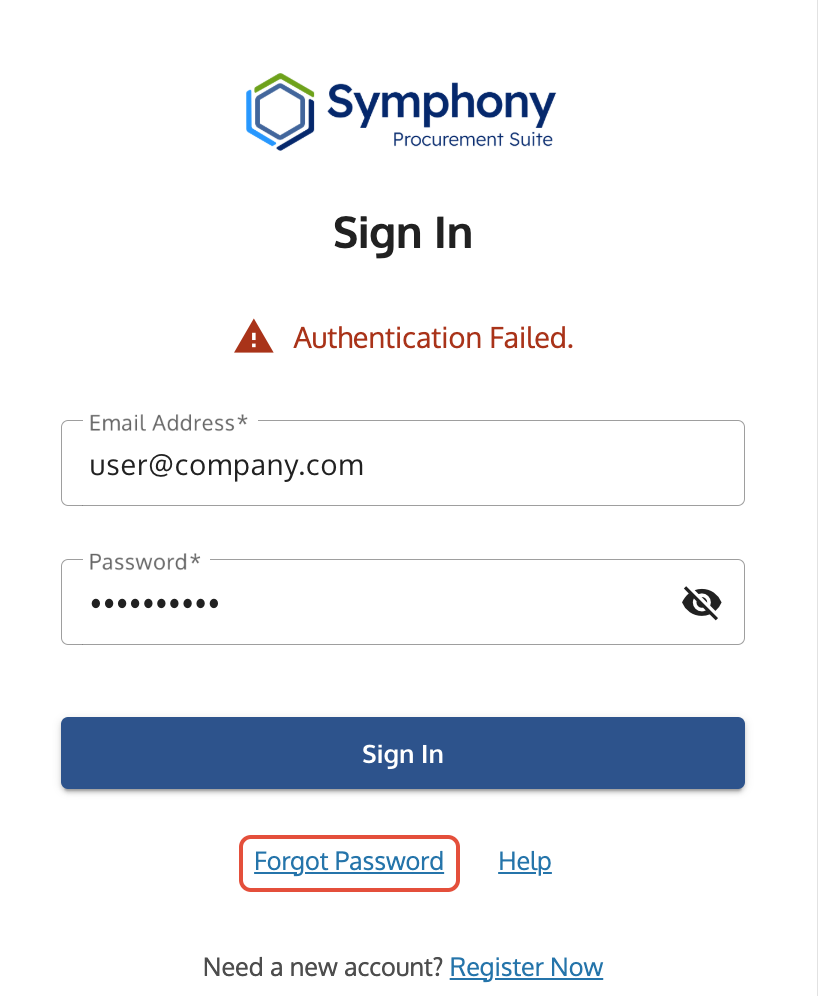
- Click Register Now on the Sign In page.
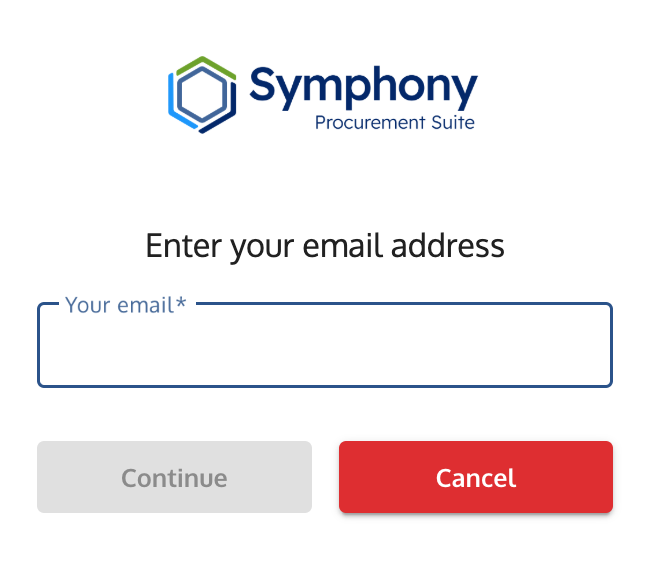
- Enter your individual email address.
- Enter the six-digit validation code sent to your email to confirm your address is correct.
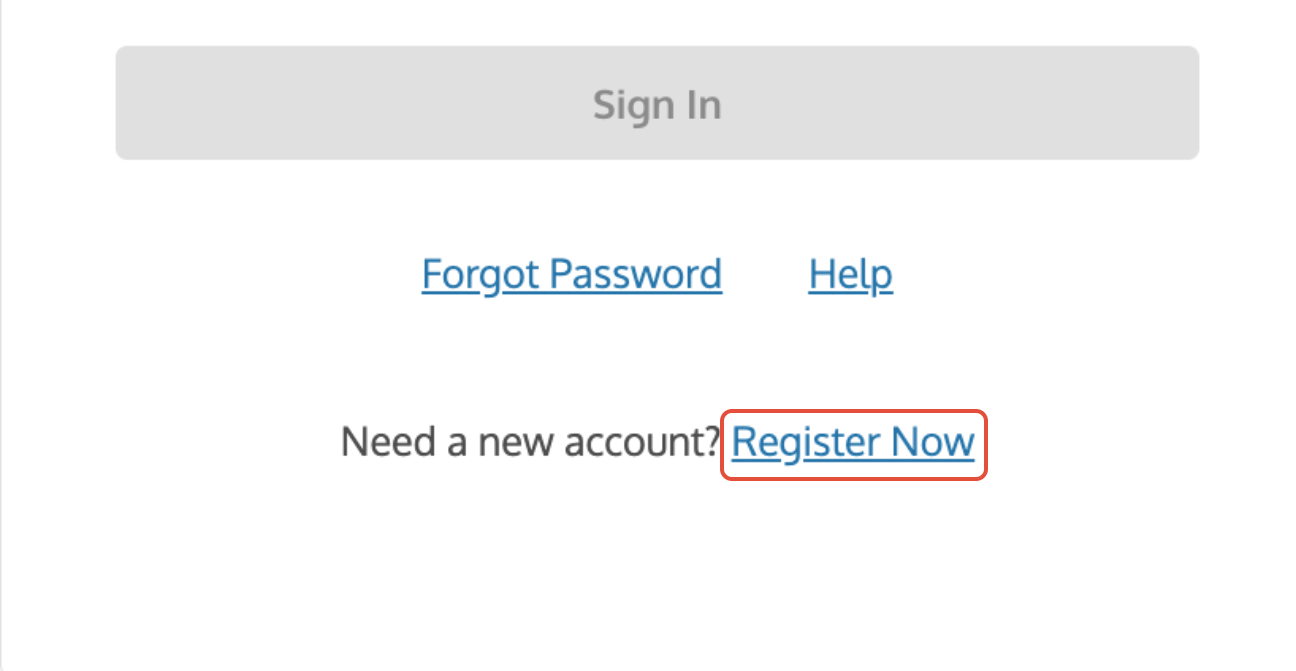
Register Now link on the Symphony login page used to start the registration process.
2. Verify and Confirm Company Data
Symphony uses your SAM data to validate your organization's eligibility.
- Enter your Prime Entity's SAM.gov UEI.
- Enter the correct CAGE code (required only if multiple CAGE codes are assigned to your UEI).
- Before proceeding, review and confirm that the company information retrieved from SAM is accurate.
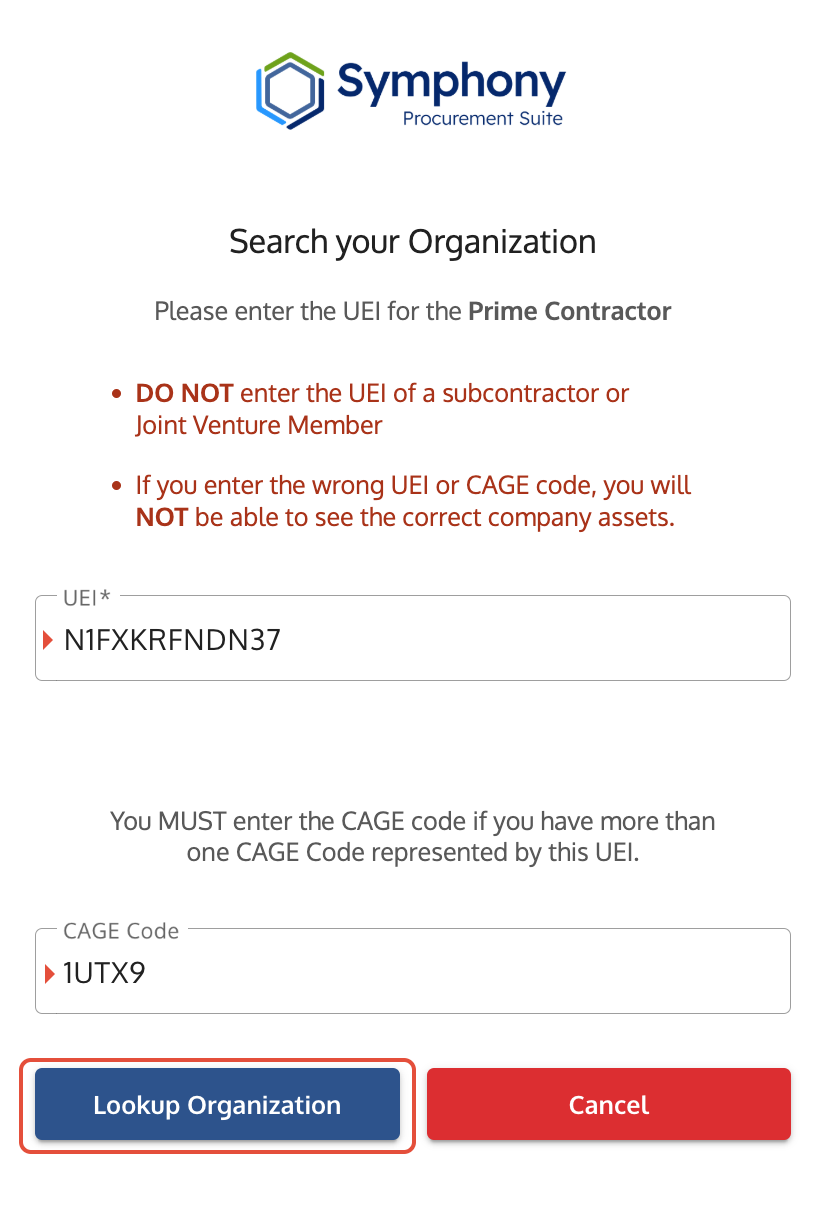
Organization Registration screen where users confirm UEI and CAGE code before proceeding.
3. Set Up Your Account and MFA
Complete your personal profile and set up the mandatory security tool.
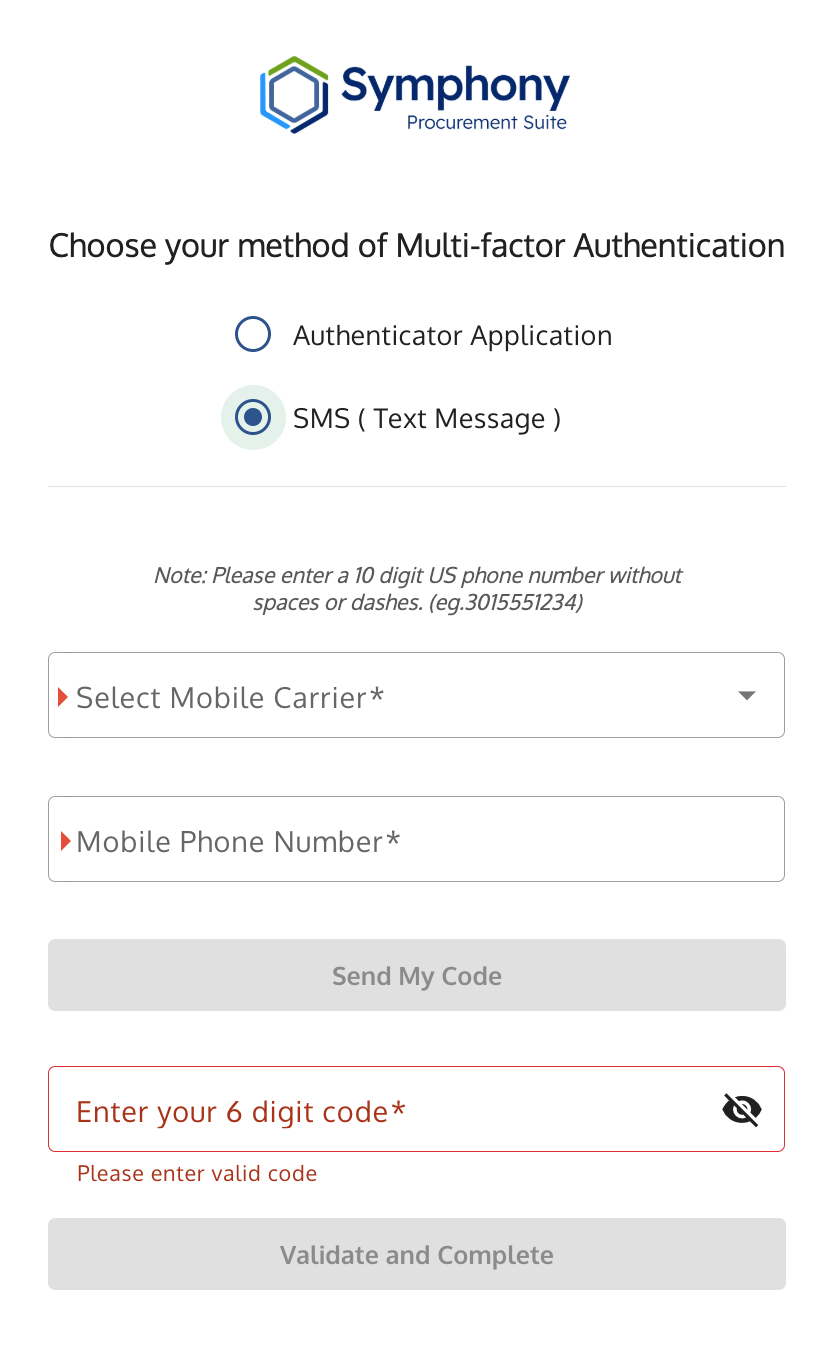
Important: SMS (Text Message) support for GSA ended April 30, 2026. You must use an app. MFA codes are not allowed via email due to security requirements and users with international or U.S. Territory phone numbers must use an authenticator app.
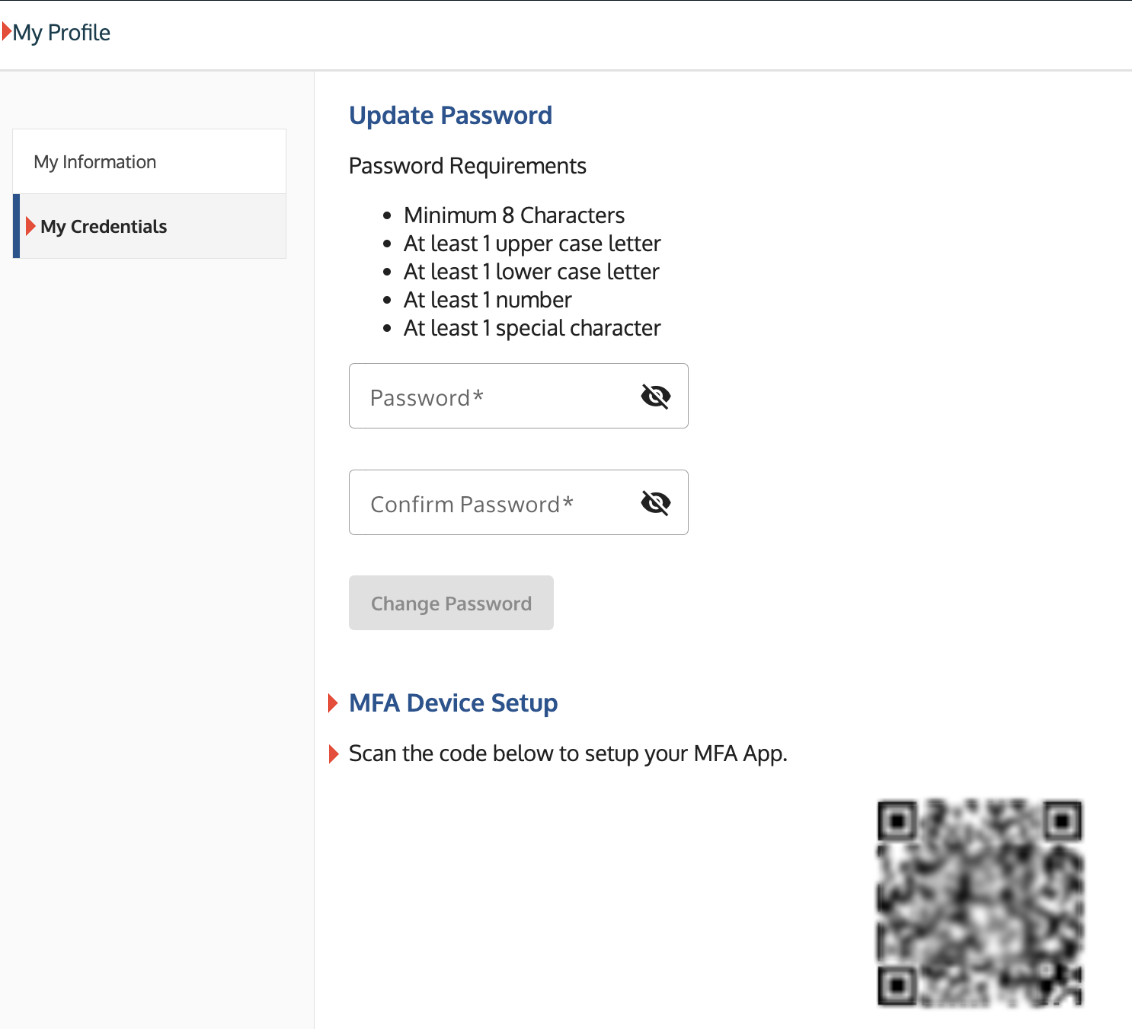
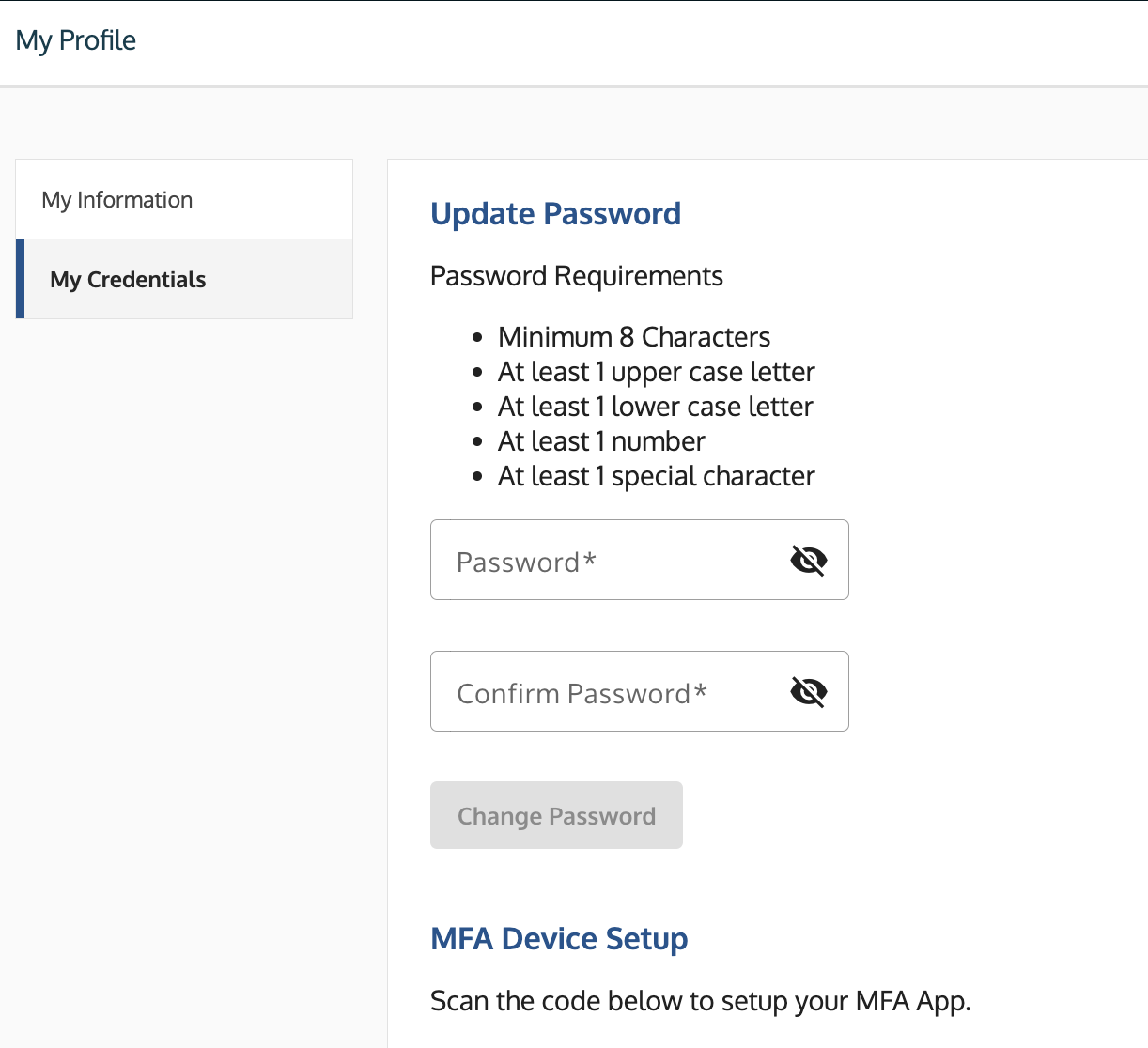
- Enter your first and last name and create a password that meets the security requirements.
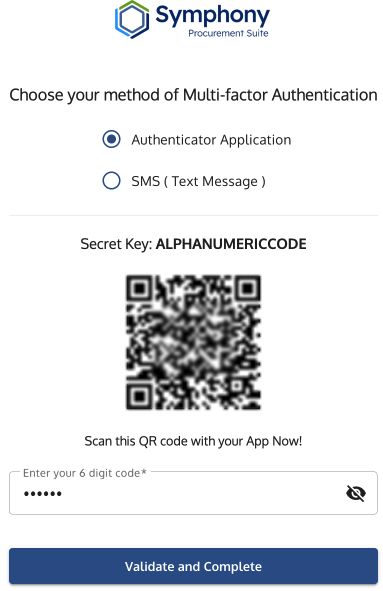
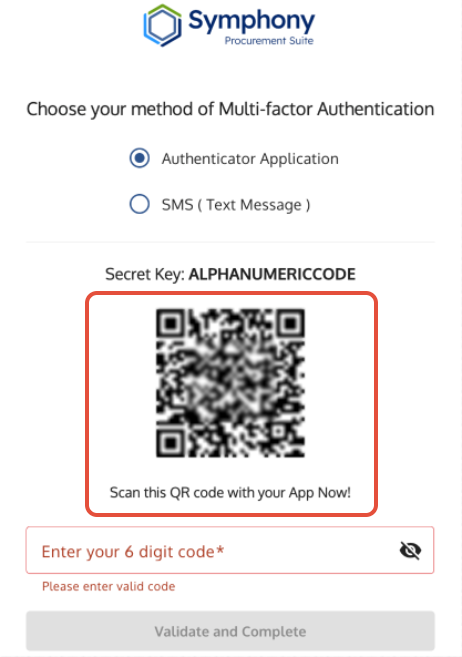
- Set up Multi-Factor Authentication (MFA) using an Authenticator App or Text Messaging (when available). You must validate this step by entering the six-digit code provided by your MFA tool.
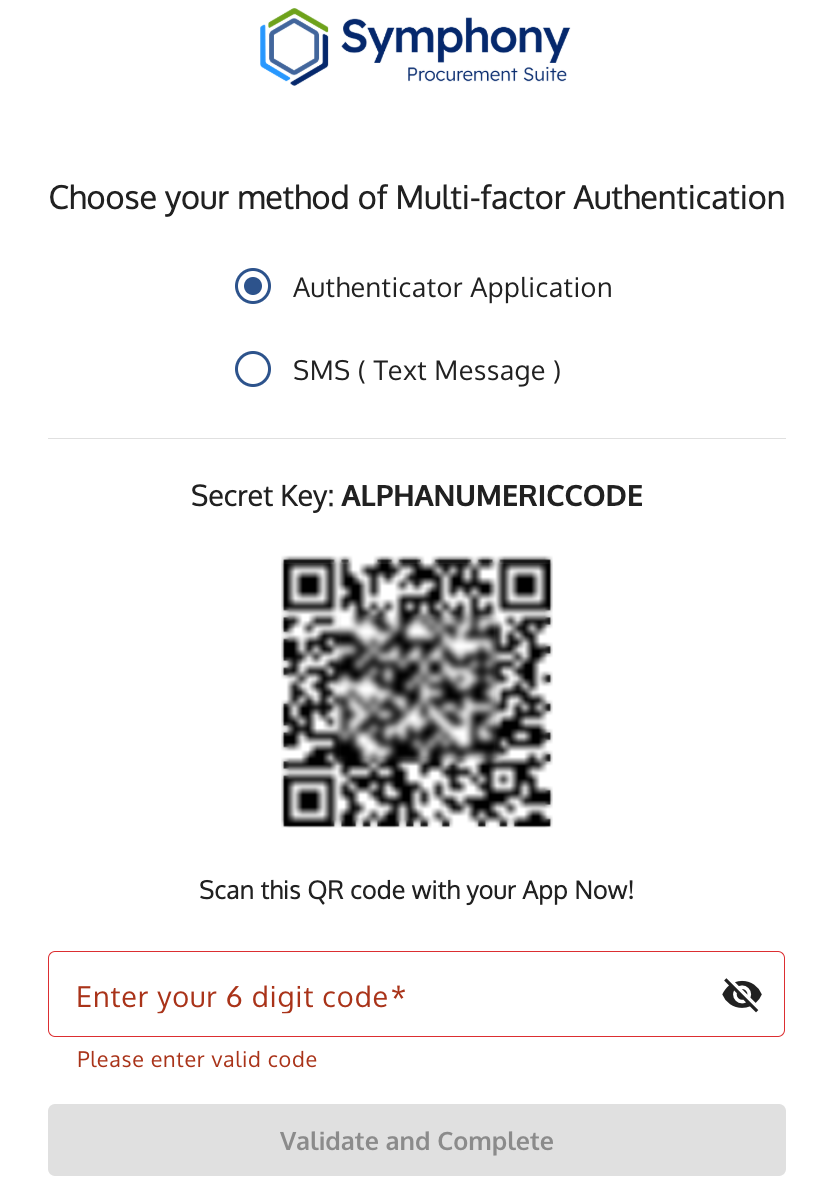
MFA Setup screen with a QR code for authenticator setup and a field to enter the six-digit code.
4. Request Account Activation
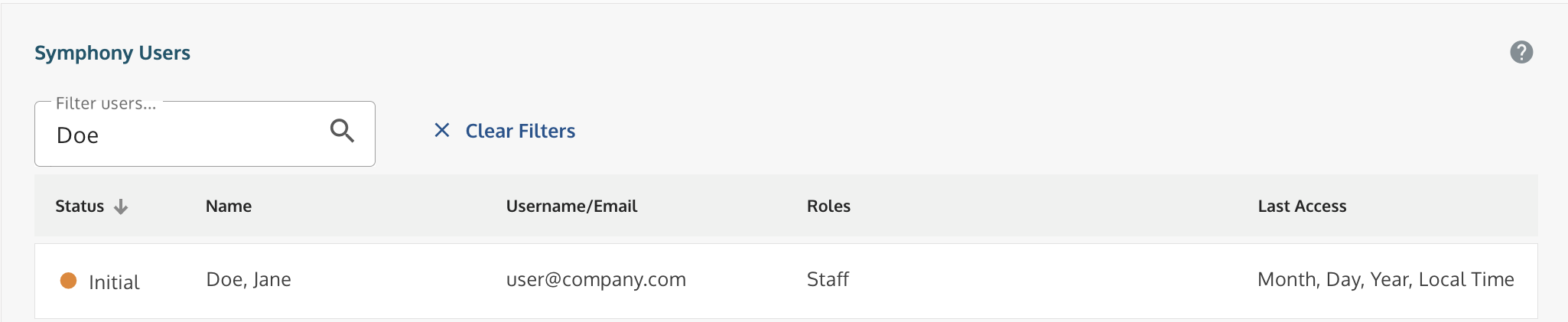
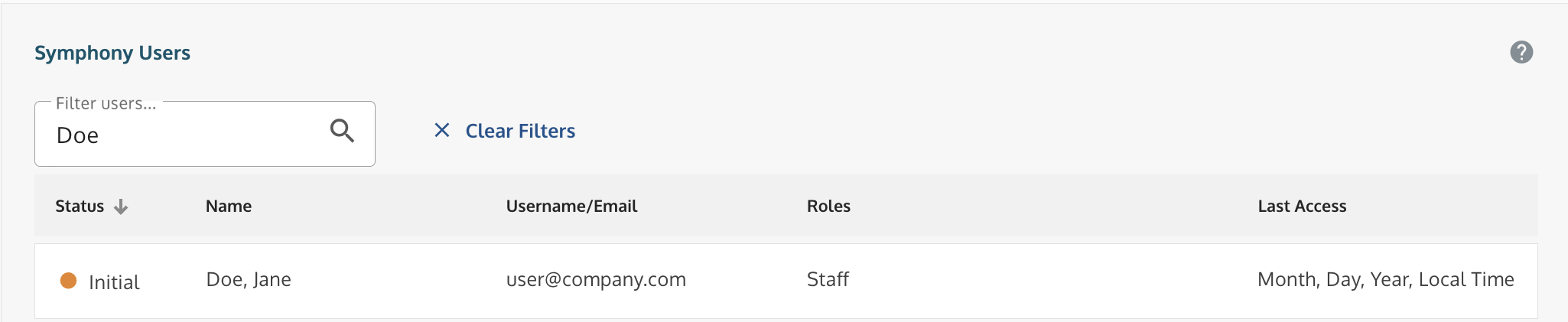
After registration, your account is in Initial status.
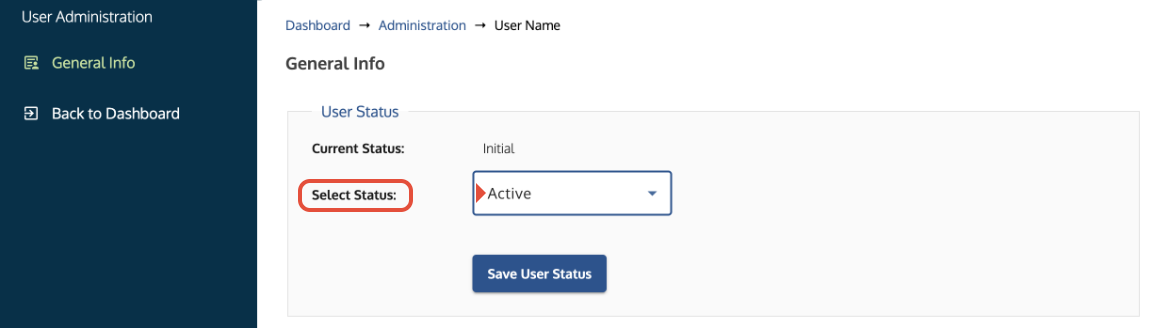
You cannot sign in until your status is changed to Active.
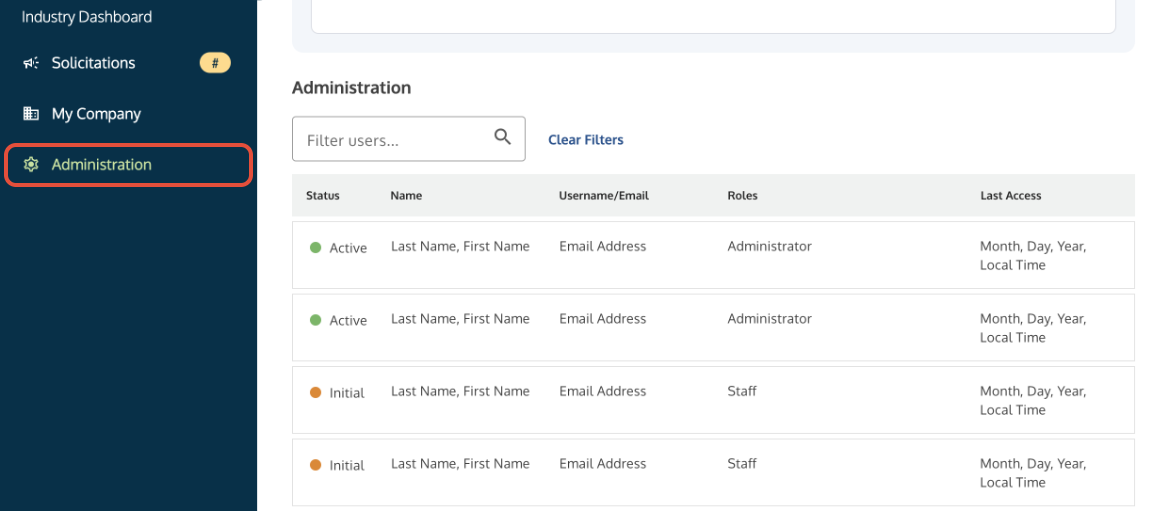
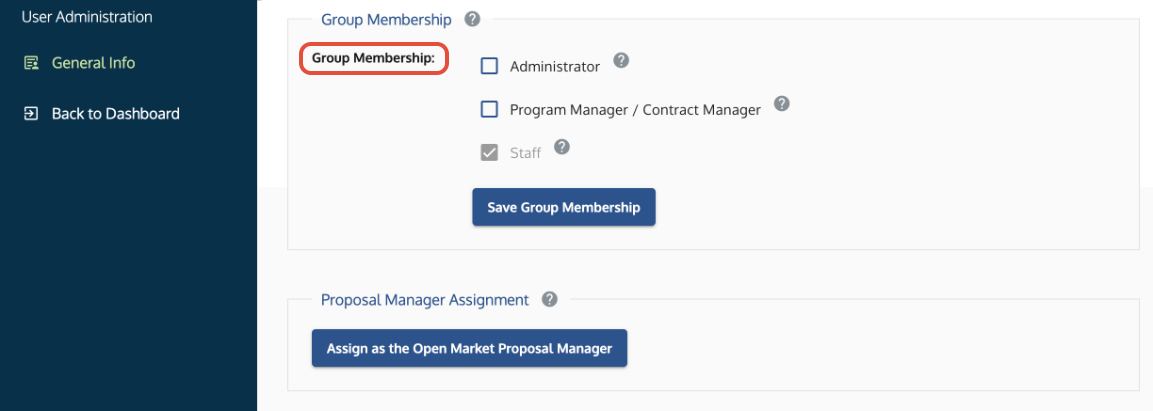
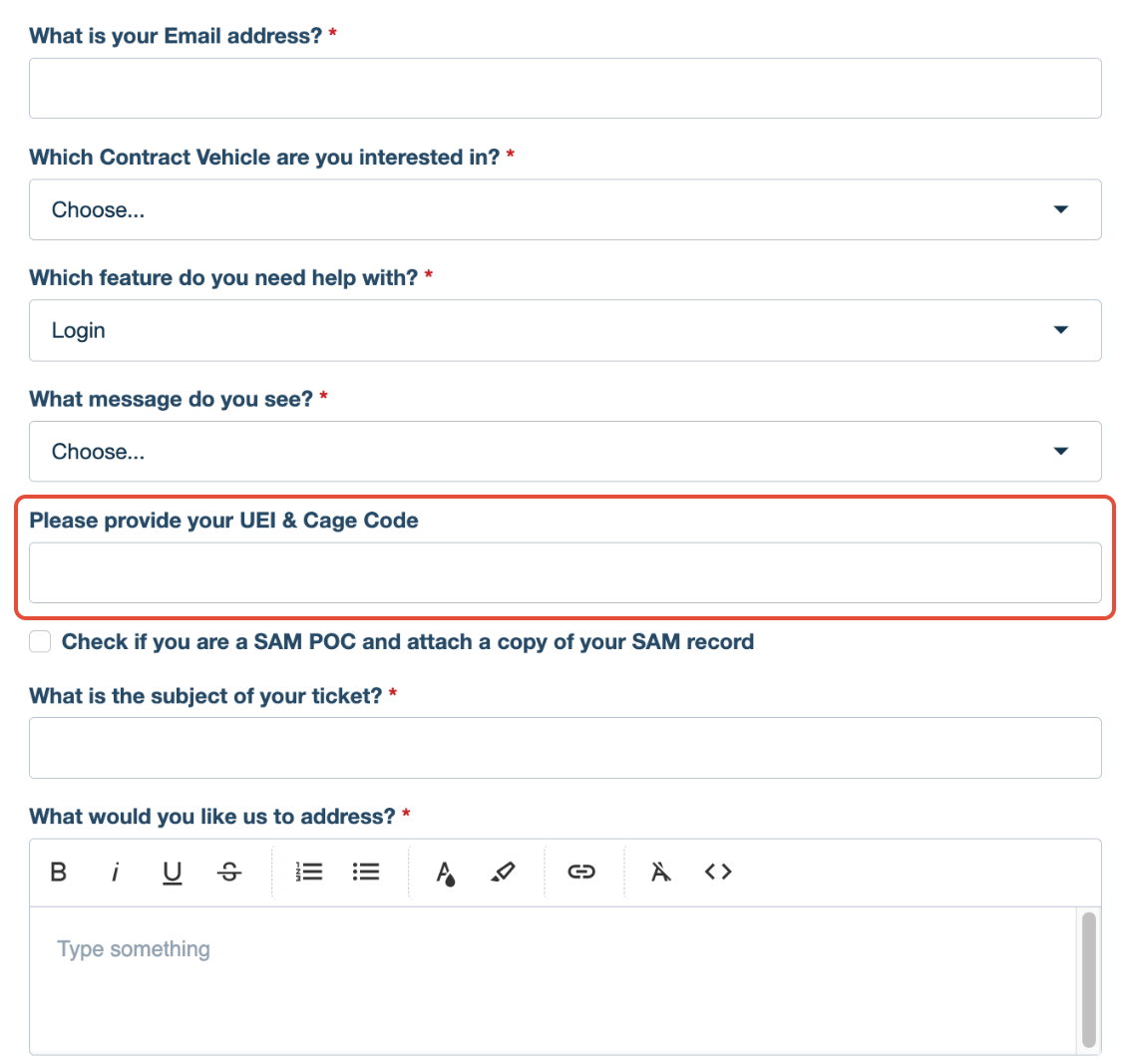
Which Activation path are you? A. I am a Business User (Staff): Contact your company’s Symphony Administrator. They must have an account, sign in, and activate your account via the Administration tab in the same portal for the same company. See Understand Your Account Roles and Permissions. B. I am the Symphony Administrator (SAM POC): You must verify your identity with the Help Desk. Submit a Ticket with a screenshot of your SAM.gov Points of Contact tab. To be activated, your screenshot MUST show your: 1. UEI 2. Full Name 3. Email AddressExample of the required SAM.gov verification elements.
Troubleshooting
Issue | Fix |
| Cannot re-register after an account was deleted. | The system does not permit re-registration with the same email. You must submit a ticket to reinitialize the old account. |
The validation email is not received. | Check your spam or trash folders. The email may come from noreply@gsa.gov or symphony@apexlogic.com. |
| Organization not found during registration. | Our SAM connection may not be working or your entity record may have an "ID assigned" status. You must ensure your company's record is fully Active in SAM before attempting to register. |
| You cannot set the password. | Verify that the password meets all the listed requirements. |
You registered for the wrong company. | Submit a Ticket with your email address and provide the correct UEI/CAGE code to have the account moved or revoked. |
| Account Inactive after registration. | Standard Users: Ask your internal Admin to activate you. Administrators: Submit a Ticket with your SAM.gov POC data (UEI, Name, and Email). Note: A screenshot of the error message is not sufficient for activation. |
| No one was notified of my registration. | Symphony does not automatically email your company's SAM Point of Contact. You must manually notify your Administrator. If you are the administrator: You must Submit a Ticket to the Help Desk yourself. |
Related Articles / Links
- Understand Your SAM and Symphony Access—Guide on verifying your UEI/CAGE data and POCs at SAM.gov
- Manage Your Symphony Sign-In and Account Activation—Guide on the activation process
- Understand Your Account Roles and Permissions—Guide for Administrators on user management
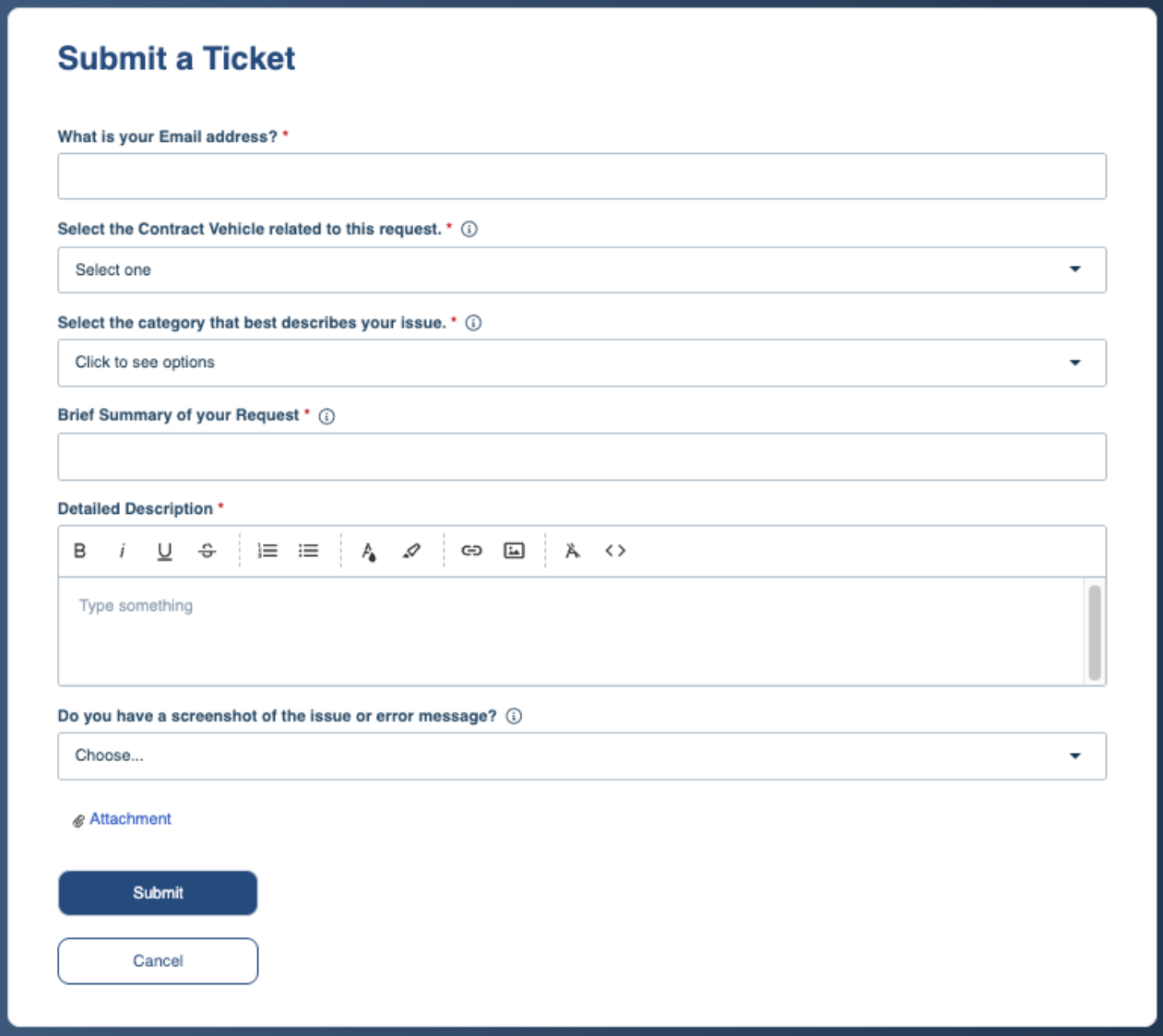
- Submit a Ticket to the Symphony Help Desk—For technical account issues
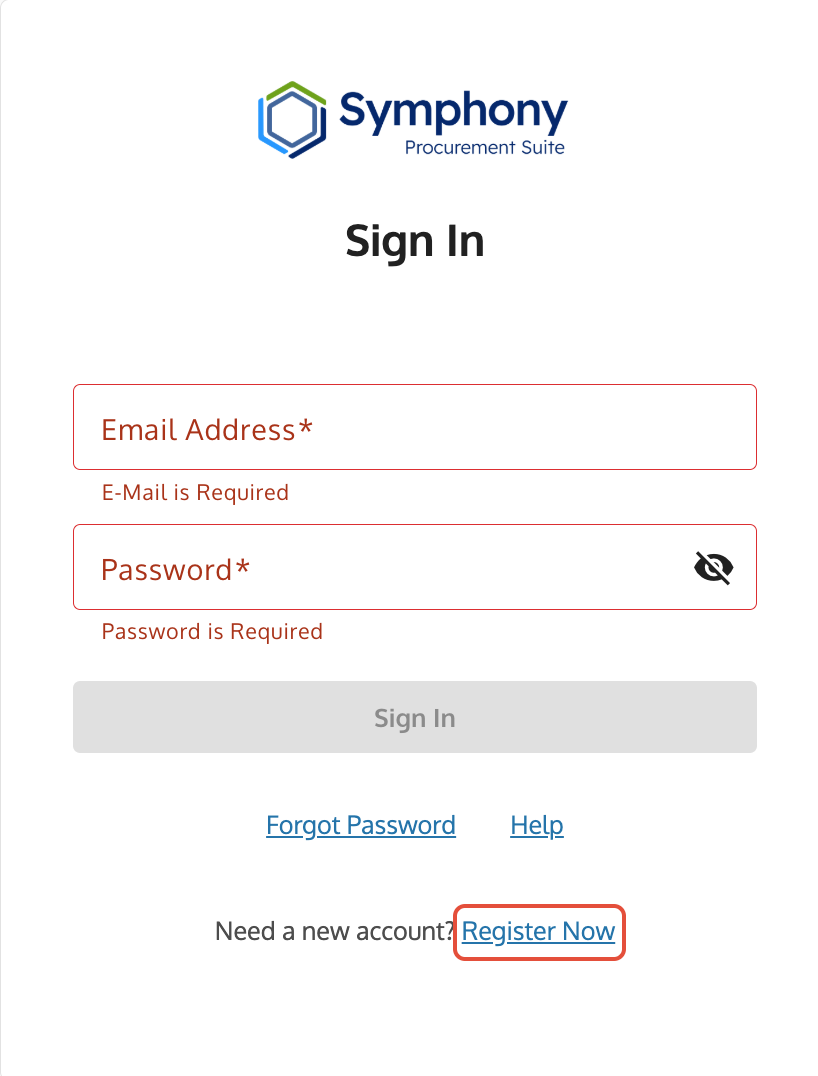



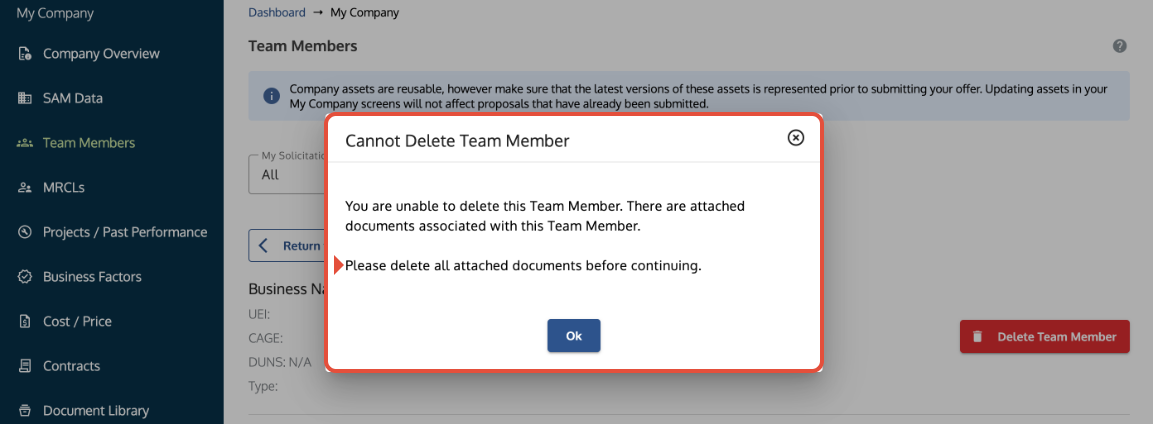
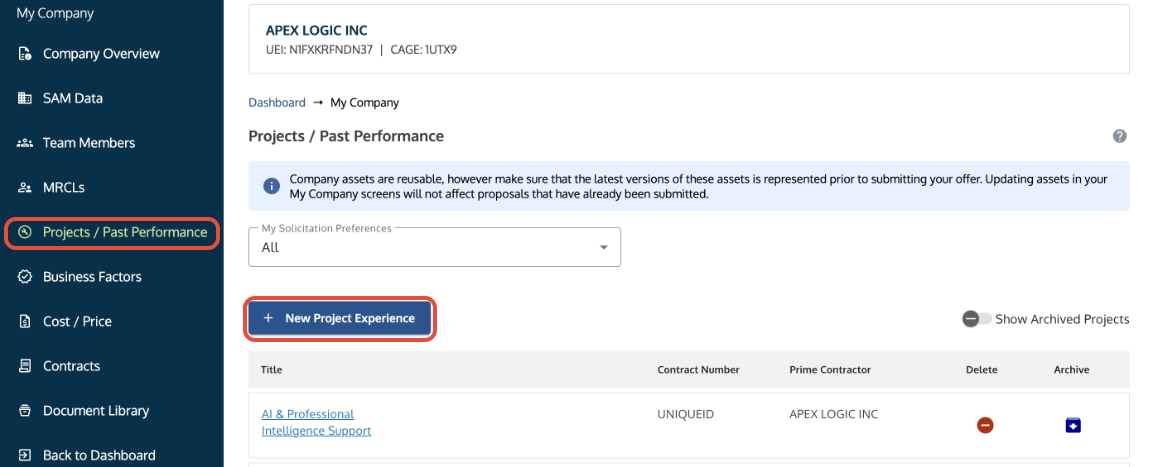
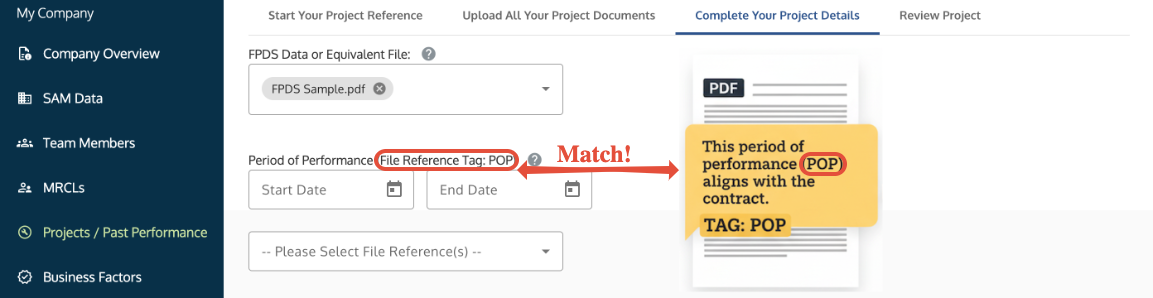
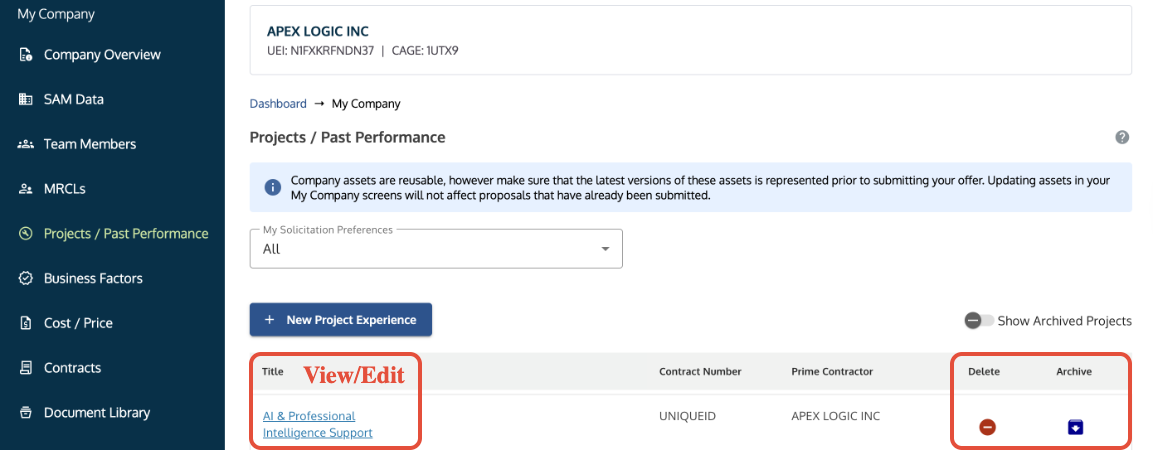
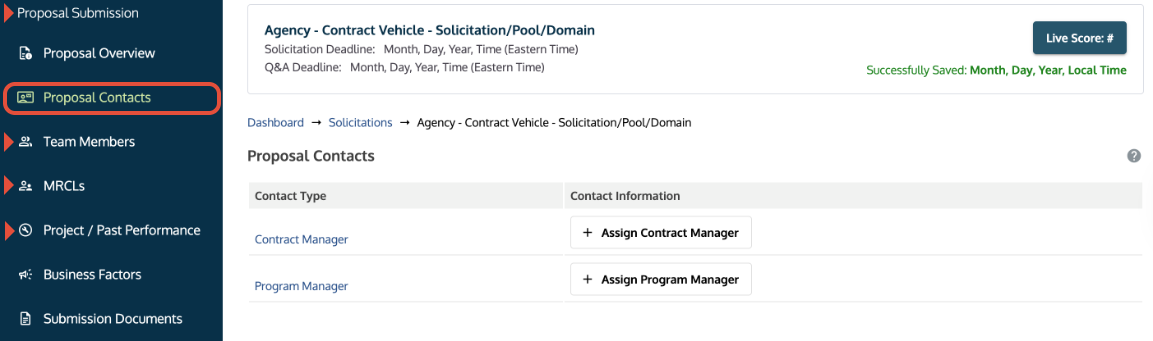

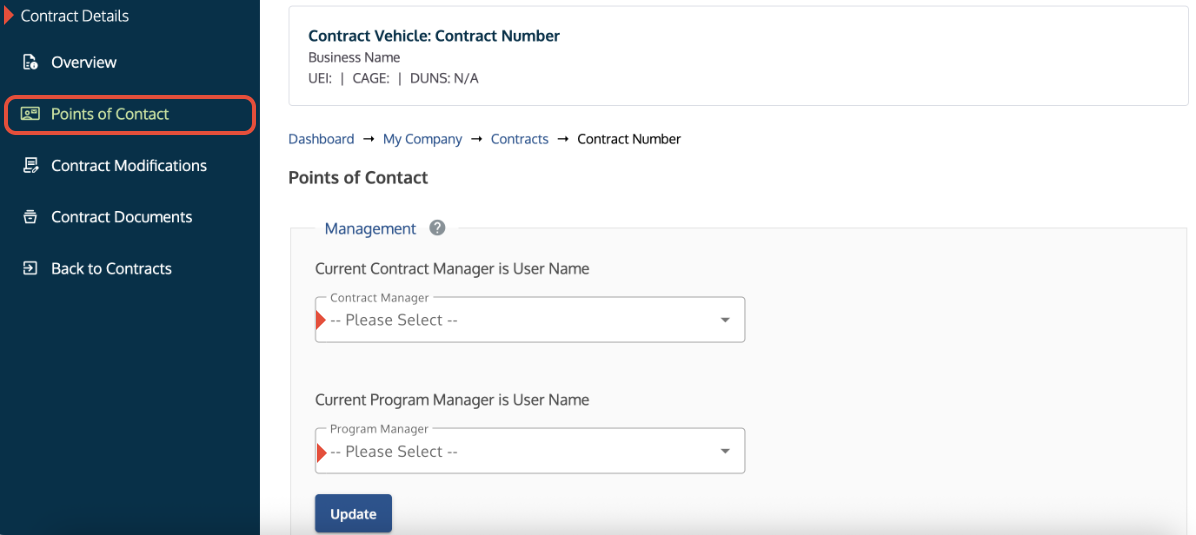

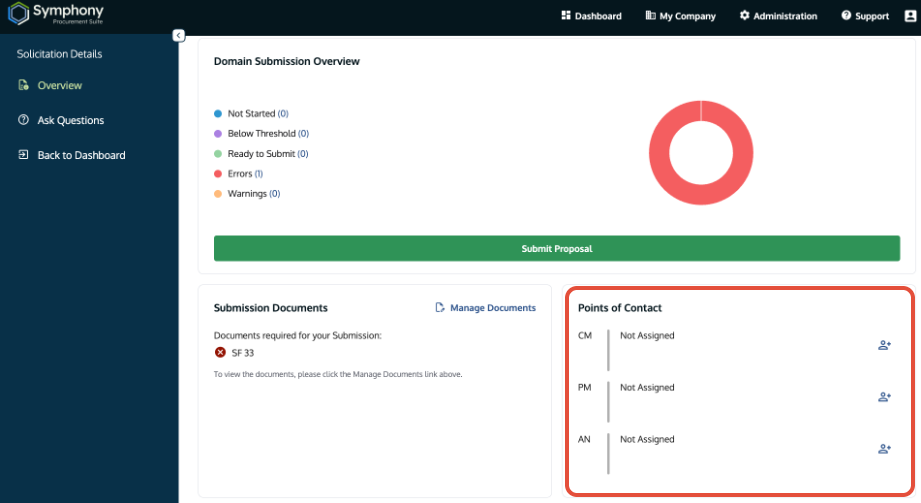
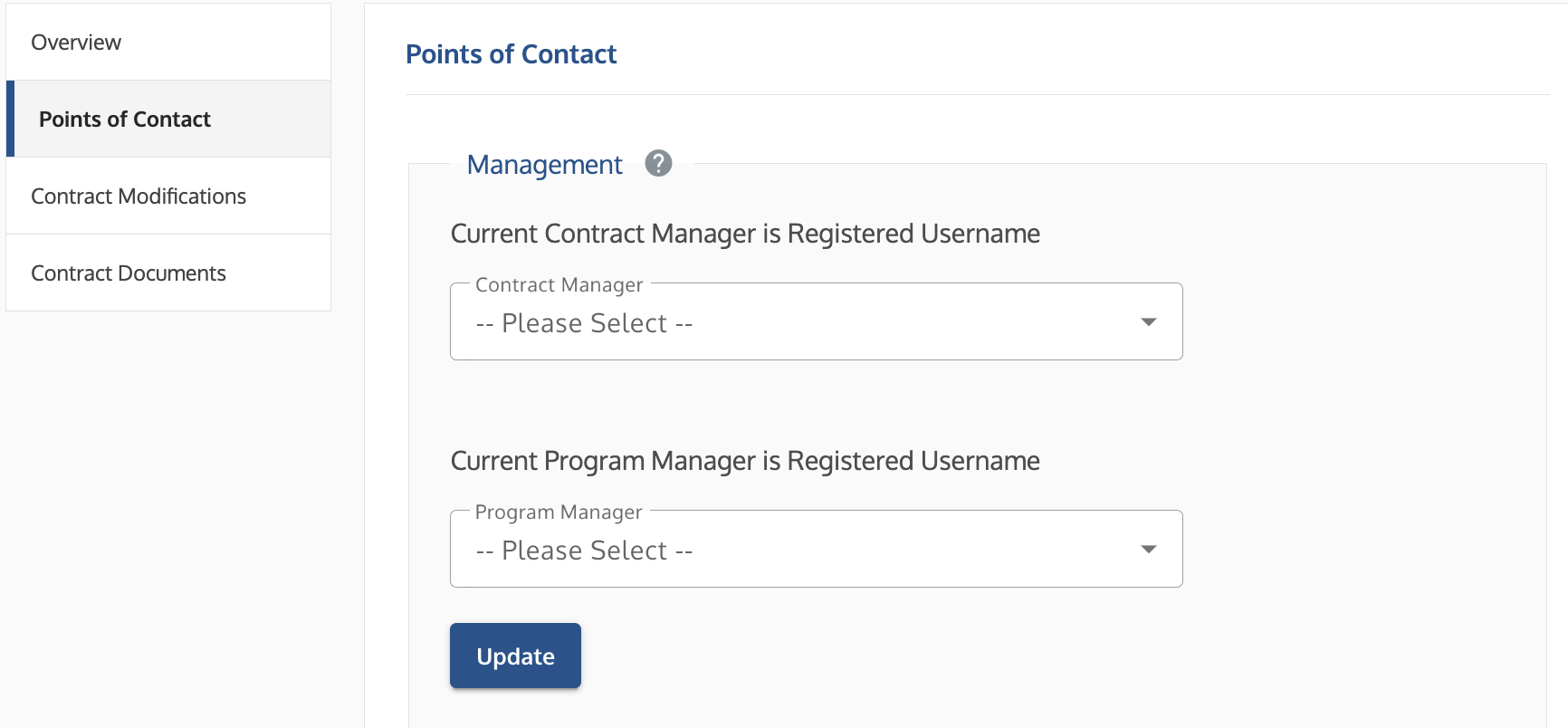 Points of Contact screen showing dropdown menus for assigning Contract Manager and Program Manager roles.
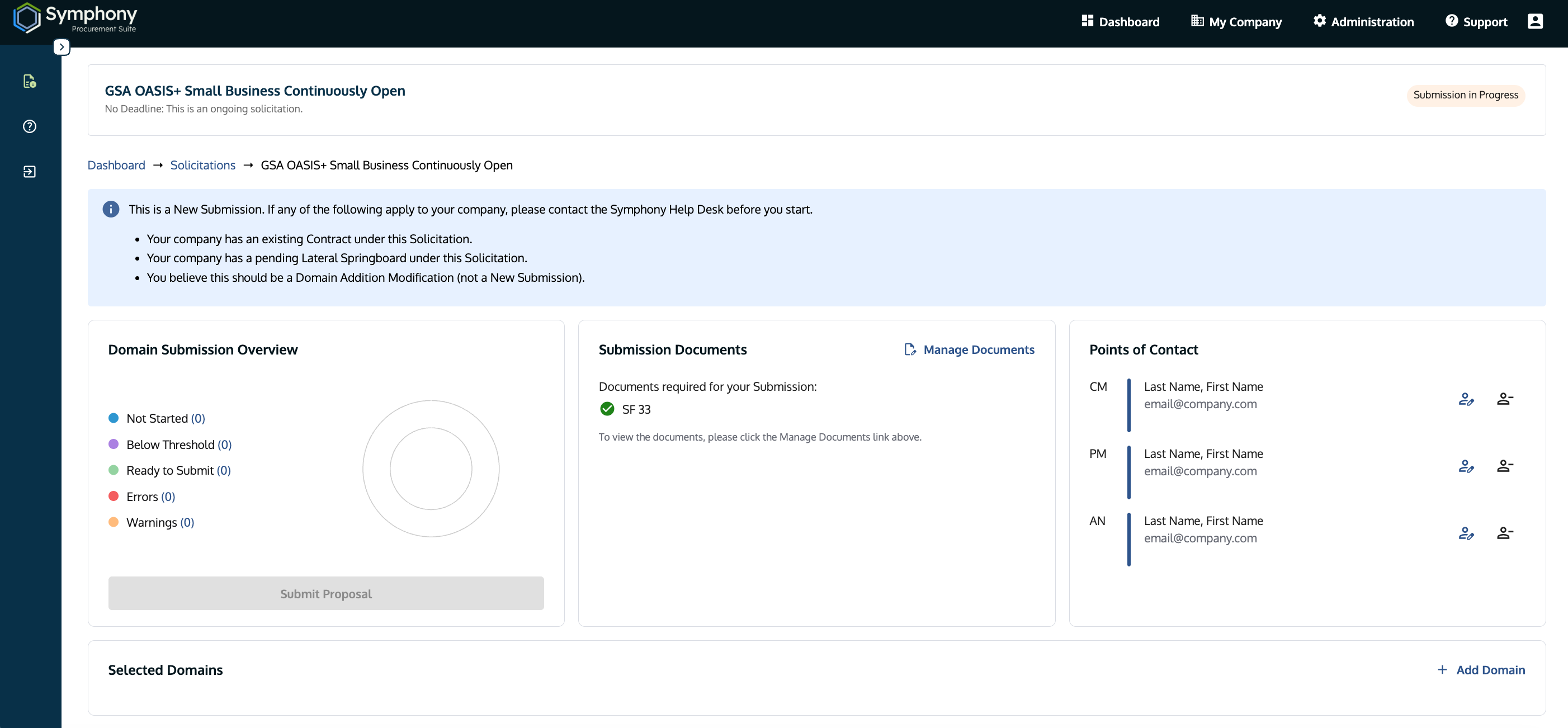
 Contract Modifications tab showing the option to start a modification.